.avif)


How to Scan a QR Code on iPhone and Solve Common Issues Quickly
On This Page
Every networking event hands out QR-enabled best business cards scanner, but scanning can feel fiddly when your iPhone camera misses the code or opens the wrong link. How to scan a QR code on iPhone matters when you want to save the contact quickly, not hunt for another app or deal with a blurry photo. You will learn simple camera tips, quick QR reader tricks, and troubleshooting steps so your phone locks focus, handles low light, and reads business card QR links on the first try.
To make it easy, Mobilo's digital business card adds a clean QR code and a smart link to your card, so your iPhone camera recognizes it instantly and saves the contact without extra apps.
Summary
- Native QR scanning is now ubiquitous on modern iPhones. iOS 11 added camera-based QR support in June 2017; iPhone 6s and newer models handle native scans; over 90% of models released since 2017 support it; and over 1 billion iPhones worldwide can scan as of 2025.
- You do not need a third-party app for routine scans; the built-in Camera and Control Center scanner handles most cases, and forcing an attendee to download an app adds friction, with a ten-second extra step that can lose leads.
- Pick the right tool for the moment, for example, Camera for fastest lock-screen access, Code Scanner when you want one-tap opening in low light, Live Text for codes inside images, and VoiceOver for audible confirmation, because removing that one extra tap reduces scanning errors.
- Most scan failures are environmental or settings-related and can be fixed in under two minutes using a short checklist. Quick checks take about 15 seconds for permissions, 20 seconds for focus, 10 seconds for lighting, 15 seconds for code integrity, and 10 seconds for network resets.
- Static QR codes scale poorly for follow-up unless routed into observable systems. Given that over 90% of recent iPhones can scan natively, teams should use short redirects, UTM tagging, and webhook or CRM connectors so every scan becomes an auditable lead.
This is where Mobilo's digital business card fits in: it uses a clean QR code and smart link on the card so iPhone cameras can scan instantly and route contacts into secure CRM workflows.
Which iPhone Models Support Scanning a QR code?
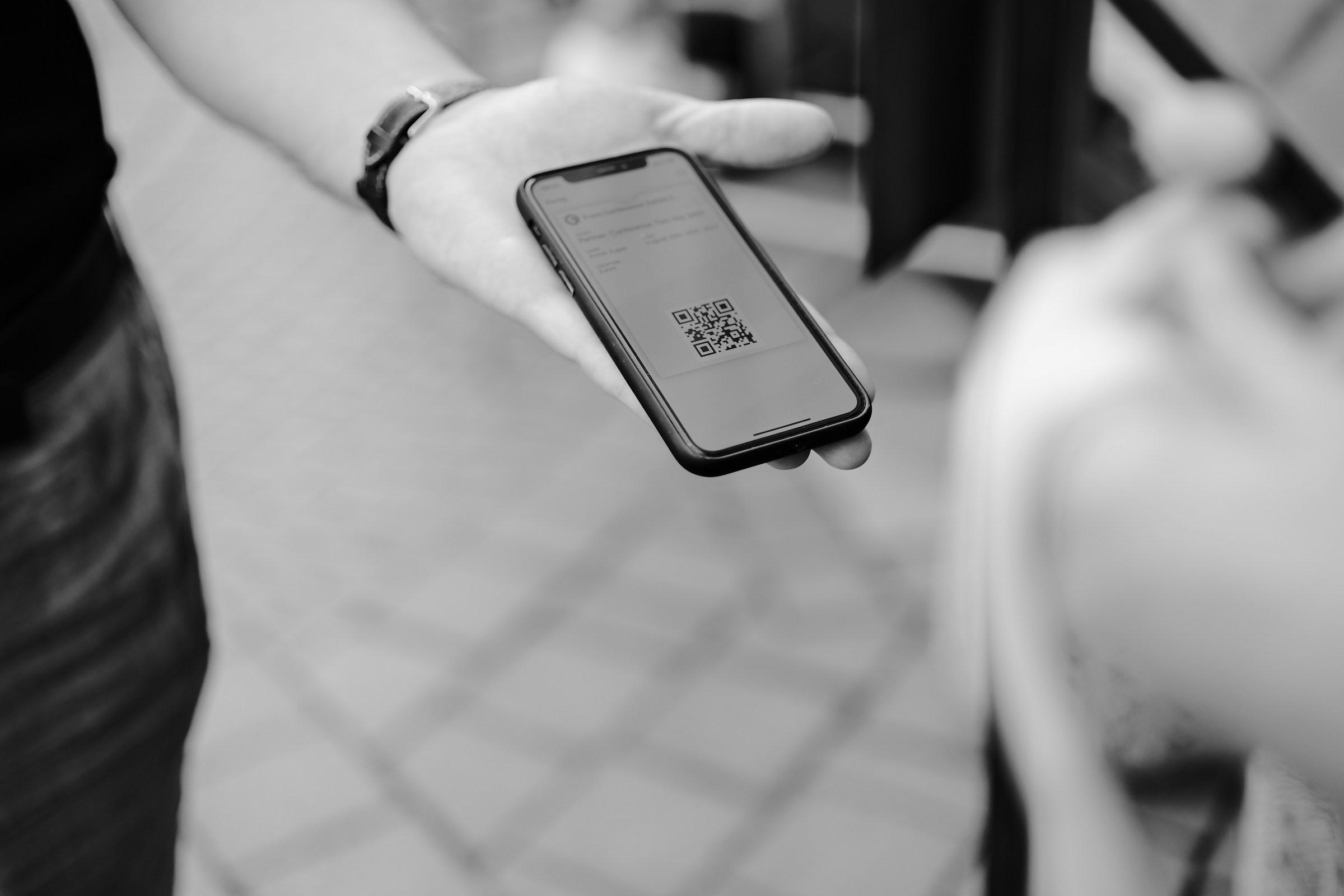
Yes, QR scanning is built into almost every modern iPhone. If your phone runs iOS 11 or later, you can scan QR codes from the Camera app. iPhone 6s and newer handle native camera QR scanning reliably, and the feature is enabled by default in current iOS releases.
Which iPhones Can Scan QR Codes?
iOS 11, released in June 2017, brought camera-based QR support to 64-bit devices, which excludes the iPhone 5 and 5c. That means models including iPhone 5S, iPhone 6, and later families are compatible with iOS 11.
For clarity, QR Code Chimp notes that iPhone models from iPhone 6s and later support QR code scanning through the native camera app. In practice, iPhones released since 2017 have this capability, so your device is likely covered.
Do I Need to Change Any Settings?
If your iPhone runs iOS 12 or later, QR scanning is turned on automatically, and you should be able to open the Camera app and point it at a code. If you are still on iOS 11 and the Camera app is not scanning, enable it this way:
- Open Settings
- Tap Camera
- Toggle Scan QR Codes on; the switch shows green when enabled
If a scan still fails, update to the latest available iOS version, as updates generally improve camera detection and security.
What If the Camera Still Doesn’t Detect Codes or You Don't See a QR Option?
Check that the camera has permission and that the lens is clean, then restart the phone. If you are on an older model that cannot update past a specific iOS, a lightweight QR scanner app will work as a fallback, but it adds friction. That friction is the problem you should monitor in real-world use.
Related Reading
- Best Business Card Scanner
- What Makes a Good Business Card
- Business Card Trends
- QR Code Marketing Strategy
- What Are NFC Business Cards
- Professional Networking Tools
- New QR Code Technology
- Best Paid QR Code Generator
- What to Include on a Business Card
How to Scan a QR Code on an Iphone

Use the method that best matches the moment. Camera for the fastest lock-screen scans, Code Scanner for one-tap opening, and a flashlight, Live Text when the code is in an image, and VoiceOver for audio feedback. I’ll walk you through exactly how to pick and use each one, step by step, with simple tips to avoid mistakes and preserve security.
How Do I Open and Use Code Scanner Quickly?
- Open the Control Center and tap Scan Code. Point the camera at the QR code until it fills the frame, then let the scanner open the destination automatically.
- If Scan Code is not in Control Center, add it from Settings by choosing Controls, then add Scan Code. That single setup saves time at conferences and trade shows because the scanner opens links immediately, removing the extra tap Camera usually requires.
- Best use case: Low light, crowded rooms, or when you want the link to open without extra steps.
When Should I Just Use the Camera App?
- From the lock screen, swipe left to open Camera, point the camera at the QR code until it is centered, hold steady, then tap the notification banner that appears to open the link in Safari.
- Use the Camera when you also need a photo, or when you want the quickest path from pocket to scan without changing settings.
- Watch for accidental photos: If you feel the shutter tap, keep your finger away from the on-screen shutter until the banner appears.
How Do I Scan a QR Code That’s Inside a Screenshot or Image?
- Open the photo, tap the Live Text icon in the lower right, then tap the QR code or the parsed link to open, copy, or share it.
- In Safari, press and hold an on-page image and choose the QR option if it appears. Live Text is the right tool when the code is not physically present but is in a screenshot, PDF, or slide someone sent you.
How Does VoiceOver Handle QR Codes for Accessibility?
- Turn on VoiceOver in Settings, open Camera, point the camera at the code, and listen as VoiceOver reads the URL or action aloud; double-tap to activate the link.
- This method gives users with visual impairment a reliable audio check of the destination before opening it.
Which Method Should I Pick, Based on the Situation?
- If the room is dim or you want one-step navigation, use Code Scanner.
- If you need immediate access from your lock screen or might take photos, use Camera.
- If the QR is in an image, use Live Text.
- If you need audible confirmation, use VoiceOver
Think of these tools like a set of hand tools. Each one works best on a specific fastener, and carrying the right tool removes friction.
QR Code Tracking Made Easy
Most teams distribute slides or cards with QR codes because they are familiar and easy to use. Still, that familiarity hides a cost. Scans often produce untagged URLs or screenshots and require manual follow-up, which slows response times and fragments data.
Platforms like Mobilo provide the bridge, capturing each scan into secure, enterprise workflows with CRM connectors, SSO provisioning, configurable retention, and SOC 2 and GDPR controls, so a single scan becomes an auditable lead with consistent branding and measurable follow-up.
How to Avoid Security Surprises or Accidental Account Access
This pattern occurs when users impulsively click links during events. Accidental redirects and confusing auth flows can create unexpected account prompts. Before you sign in after any scan, check the domain in Safari, avoid entering credentials on unfamiliar pages, and, when possible, use your organization’s SSO path.
If a scan leads to an app or login you do not recognize, close the page and verify the sender. These small habits prevent a quick scan from becoming a messy support ticket.
Fast Troubleshooting and Practical Tips You Can Use Right Now
- If the code is reflective, tilt the card or screen slightly to remove glare.
- Move the phone slowly in and out to help autofocus, or pinch to zoom for small codes.
- Crop screenshots to isolate the QR before using Live Text if detection is flaky.
- When speed matters at events, add Scan Code to Control Center once and teach your team a two-step routine: Open Control Center, tap Scan Code, point, and wait.
Can iPhones Scan QR Codes Without an App?
You do not need a third-party app to scan a QR code on an iPhone; the built-in camera and quick-access scanners handle nearly every use case. The fastest path is to open the camera or the Control Center scanner and point it at the code.
If someone tells you to install an app, they are addressing a symptom, not the root cause. Discoverability and workflow integration are what teams actually need, not another download.
Why Do People Assume an App Is Required?
This pattern appears across events and front desks. App store marketing and vendor brochures push standalone scanners, so attendees default to "download first" out of habit or nervousness.
That creates friction, and small frictions compound at scale. At a busy booth, a ten-second extra step to download an app can turn a warm lead into a lost lead. It is exhausting to watch potential connections evaporate due to unnecessary steps.
Who Benefits from a Dedicated Scanner, and When Is It Overkill?
If you need persistent features like cloud sync, tagable scan history, or offline bulk scanning, a third-party reader can be helpful. When conditions change, such as scanning hundreds of badges in a noisy exhibit hall, those apps reduce manual reconciliation. But for routine exchanges and one-off scans, native options remove a needless barrier, so you should choose tools that address the real operational gap rather than the perceived one.
How Does a Single Scan Become Actionable for Teams?
Think of a scan as the handshake that starts a process. The real value comes from routing that handshake into systems that generate follow-up, rather than leaving it as an untagged URL.
Use short, trackable landing pages or dynamic codes that redirect to a landing domain with UTM parameters, then push the hit into your CRM via a webhook or connector, so every scan becomes an auditable lead with source, campaign, and timestamp. That design flips QR codes from a momentary convenience into a measurable pipeline input.
What Breaks When Teams Rely on Screenshots and Ad Hoc Links?
This failure mode occurs when follow-up is manual, such as when links are live in screenshots, notes are inconsistent, and branding is fragmented across spreadsheets. As volume grows, manual reconciliation takes time and introduces errors, resulting in slower follow-up and missed revenue.
Platforms that capture scans directly into enterprise workflows preserve consistent branding, enforce SSO where appropriate, and maintain retention and audit controls, thereby reducing time-to-contact and data cleanup work.
What Simple Practices Stop Needless Downloads and Increase Capture Quality?
Train staff to open the scanner from the Control Center, show attendees the one-tap flow, print short domain redirects so the landing page looks familiar, and append source tags so every lead is automatically attributed. Also, use dynamic QR targets for events so you can swap destinations without reprinting, and require SSO or a verified form only when the conversion justifies the friction. These small choices preserve momentum while keeping data reliable and secure.
Finally, the reach of this device is enormous, which is why minimizing friction matters at scale. As of 2025, over 1 billion iPhones worldwide can scan QR codes using the native camera app. For compatibility, note that over 90% of iPhone models released since 2017 support QR code scanning natively.
Related Reading
- How to Put Linkedin on Business Card
- How to Share Linkedin QR Code
- How to Add Instagram QR Code to Business Card
- QR Code Instead of Business Card
- QR Code Size on Business Card
- Aztec Code vs QR Code
- How QR Codes Work
- QR Code Analytics
- Linkedin QR Code Business Card
- How to Create Vcard
What to Do If Your iPhone Won’t Scan a QR Code
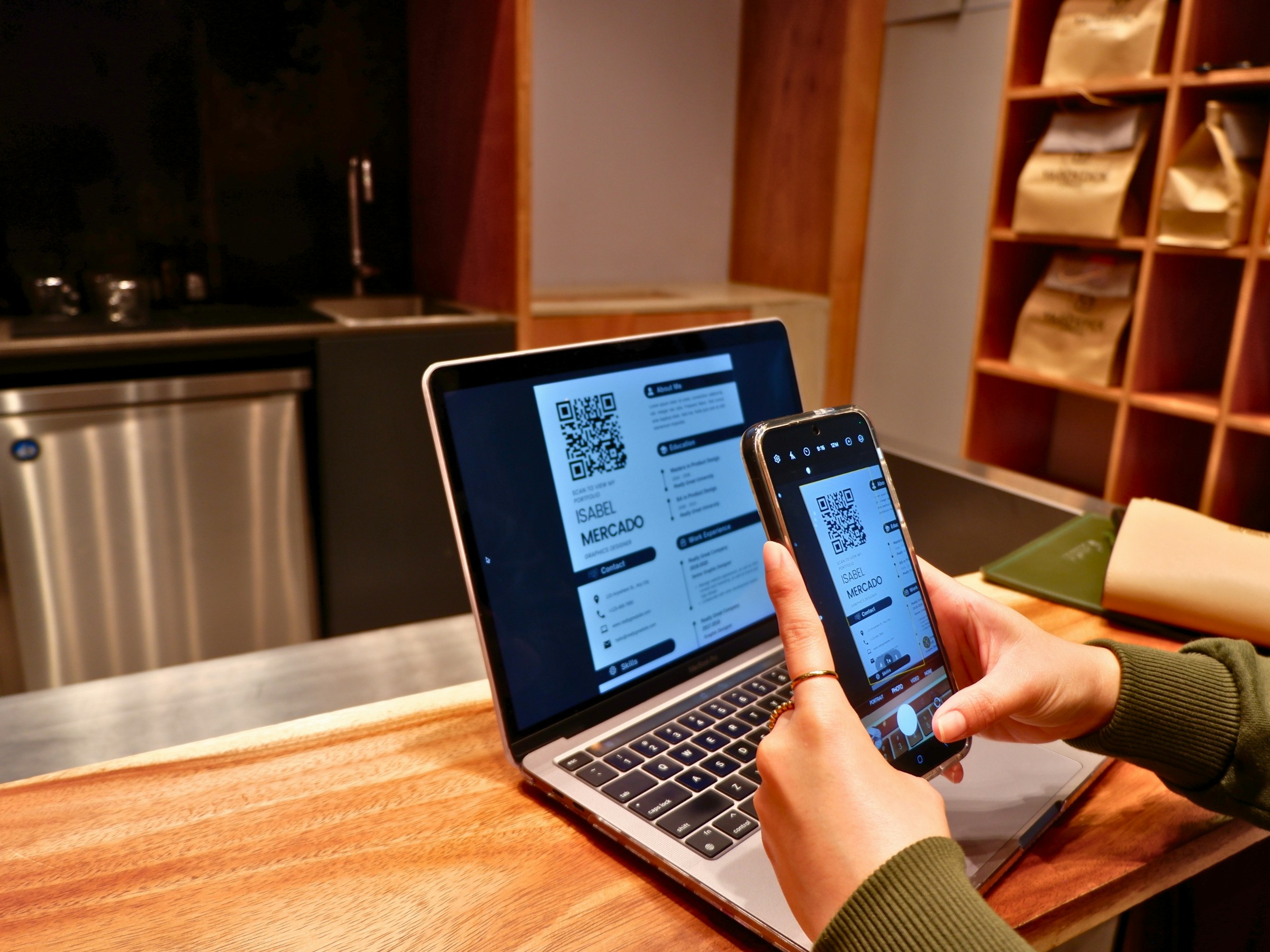
If an iPhone will not scan a QR code, work through the short checklist in order. Quick permission and mode checks; camera focus and lens; lighting and glare; physical code; then software or connectivity issues. Each of these has a one-minute test you can run now to isolate the problem and resume exchanging contacts.
Could a Setting or Mode Be Silently Blocking Scans?
Start with the easy wins you can check in under a minute. Check Focus or Do Not Disturb, as these modes can affect how notifications appear when a code opens. Check Screen Time restrictions, which sometimes block the Camera app or external links, and confirm Camera permissions for any third-party scanner you use.
If you use a work-managed device, a mobile device management profile can also limit camera access, so ask your admin if nothing else explains it.
Is the Camera Having Trouble Focusing?
Autofocus issues are the most common cause. Put the QR code about 6 to 12 inches from the lens and move the phone slowly in and out until the pattern sharpens, then hold steady for two seconds. Tap the QR code to enable tap-to-focus if your phone supports it.
If the camera still hunts, close the Camera app and reopen it, or flip between front and rear cameras and back again to nudge the hardware. If you are using a case with a thick lip, remove it promptly to ensure the lens is not obstructed.
Could Glare or Poor Light Be Hiding the Pattern?
Ambient light matters more than you expect. Intense overhead lighting or sunlight reflecting off glossy cards will wash out the code; fluorescent lighting will reduce contrast. Tilt the card or phone a few degrees to change reflections, or step into soft shade for a few seconds. If the QR is on a glossy printed card, try angling it so the camera sees the black modules against a non-reflective background.
Is the QR Code Itself Dirty, Cropped, or Printed Too Small?
A smudge, a missing corner, or a partial crop can render the pattern unreadable. Inspect the code for scratches or ink bleed and, if possible, gently clean it. For tiny codes printed on badges or slides, ask for a larger copy, or have the person send a screenshot so you can zoom in. If the code contains a short redirect or tracking parameters, typing a short, trusted domain is a fast fallback when scanning fails.
Could Software, Networking, or Device Age Be the Issue?
Restarting the phone resolves many transient camera and network faults within under a minute. Also, check whether the device can access other camera features, such as taking photos, to rule out hardware failure. If the phone is old, note that devices running iOS 10 or earlier cannot scan QR codes natively, so a third-party reader or manual URL entry may be required.
If a scan opens a page that requires a login, it can create confusion and anxiety. Pause and verify the domain before entering credentials, and use your organization’s SSO path when available to avoid unexpected account prompts.
What Quick Network Checks Help When a Code Links to Online Content?
Toggle Airplane mode on and off to reset mobile data, or switch from cellular to Wi-Fi, and try again. If a corporate VPN or a strict content filter is active, it may block redirects or landing pages used by the QR, so test on a different network or ask someone nearby to open the link and confirm it loads. These checks usually take less than 60 seconds and will indicate whether the issue is on your phone or at the destination.
Why Do These Failures Feel So Personal, and What Should Teams Change?
When scanning fails at an event, it breaks a micro-moment of trust. I have seen teams lose momentum because a code was redirected to an unfamiliar sign-in, and the person walked away frustrated. That pattern appears repeatedly in registration lines and booth demos. The familiar practice of printing static QR codes works early on, but when follow-up must be consistent and auditable, the hidden cost is lost leads and messy data.
Most teams find that platforms that combine QR, NFC, and NameDrop into an integrated capture flow, with CRM connectors, SSO provisioning, configurable retention, and SOC 2 and GDPR controls, turn one-off scans into tracked, compliant leads, shortening time-to-contact and reducing awkward login moments.
How to Run Each Troubleshooting Step in Under a Minute?
- Quick permissions check (15 seconds): Review Focus, Screen Time, and Camera permissions.
- Focus and lens check, 20 seconds: Move the phone slowly in and out while tapping the code, then wipe the lens.
- Lighting and glare fix, 10 seconds: Tilt the card or step a pace to soft shade.
- Code integrity test, 15 seconds: Inspect for smudges or cropping; request a screenshot if needed.
- Network reset (10 seconds): Toggle Airplane mode or switch networks. Do these in sequence, and you will resolve most failures within two minutes.
Scanning fails more often due to environmental or settings issues than because the device is broken, and that reality should help calm the moment when a hand reaches for a card and nothing happens.
Related Reading
- Static vs Dynamic QR Code
- How to Put a QR Code on a Business Card
- RFID vs QR Code
- How to Track QR Codes
- Is QR Code Generator Safe
- How Much Does a QR Code Cost
- QR Code Accessibility
- QR Code Lead Generation
- Business Card Ideas With QR Code
- Dynamic QR Code Example
Book a Demo Today and Get your First 25 Cards Free (Worth $950)
If you want every iPhone QR scan to generate a measurable lead rather than a lost link, take a straightforward step, like connecting scans directly into your team's follow-up flow.
I recommend exploring Mobilo; teams find Mobilo's smart digital business cards capture scans from an iPhone, route contacts into secure CRM workflows, and let you pilot with a demo and complimentary starter cards so you can test results without risk.