.avif)

How To Add Instagram QR Codes to Business Cards Effectively
On This Page
You hand someone a business card and hope they find your Instagram later. How do you add an Instagram QR code to a business card so a single scan sends people straight to your profile? This article outlines clear steps, design tips, and quick fixes for adding Instagram QR codes to business cards to boost scan-to-follow rates, engagement, and brand visibility.
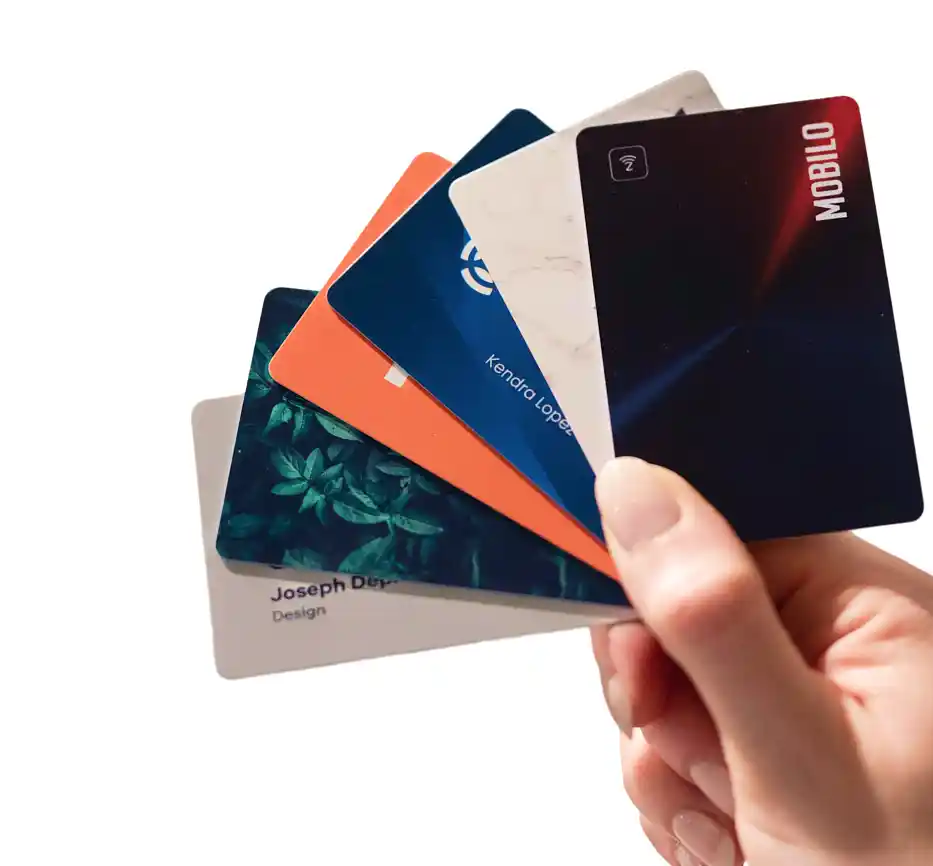
To make that easy, Mobilo's digital business card, lets you add a social media QR code to your card, link it to your Instagram profile, and track scans for better contactless networking and follow-up.
Summary
- Adding Instagram via a QR code turns a one-off handoff into ongoing engagement, which matters because 63% of business cards are discarded, and Instagram has over 2 billion users who can turn a scan into a follow or discovery.
- A QR code removes typing friction and enables direct commerce or lead capture, which is significant because between 30% and 70% of users shop directly on Instagram, making QR-driven landing pages measurable conversion channels.
- Small design choices drive scan reliability, so print the QR at least 2.5 x 2.5 cm (1 x 1 inch), increase to 3 x 3 cm for denser codes, keep a quiet zone of at least four modules and a 4 to 6 mm edge margin, and aim for modules that render at about 1.0 mm.
- Treat QR testing like product QA: Print a final proof on the chosen stock, scan with at least three different devices from typical handoff distances of 20 to 40 cm, and test under varied lighting and finishes to catch failure modes before a full run.
- Ad hoc asset management creates hidden costs at scale because inconsistent QR files and multiple printers lead to lost analytics, reprints, and slower follow-up once teams distribute hundreds or thousands of cards.
- Make the scan promise explicit with a short CTA, keep microcopy to 7 words, and run quick A/B tests to see which phrasing increases conversions, noting that 72% of consumers prefer scanning a QR code to access a digital business card.
This is where Mobilo's digital business card fits in, by centralizing QR and NFC asset control, providing branded landing pages, and routing scans into CRM workflows for measurable attribution and compliant data handling.
Why Put Instagram on Your Business Card?
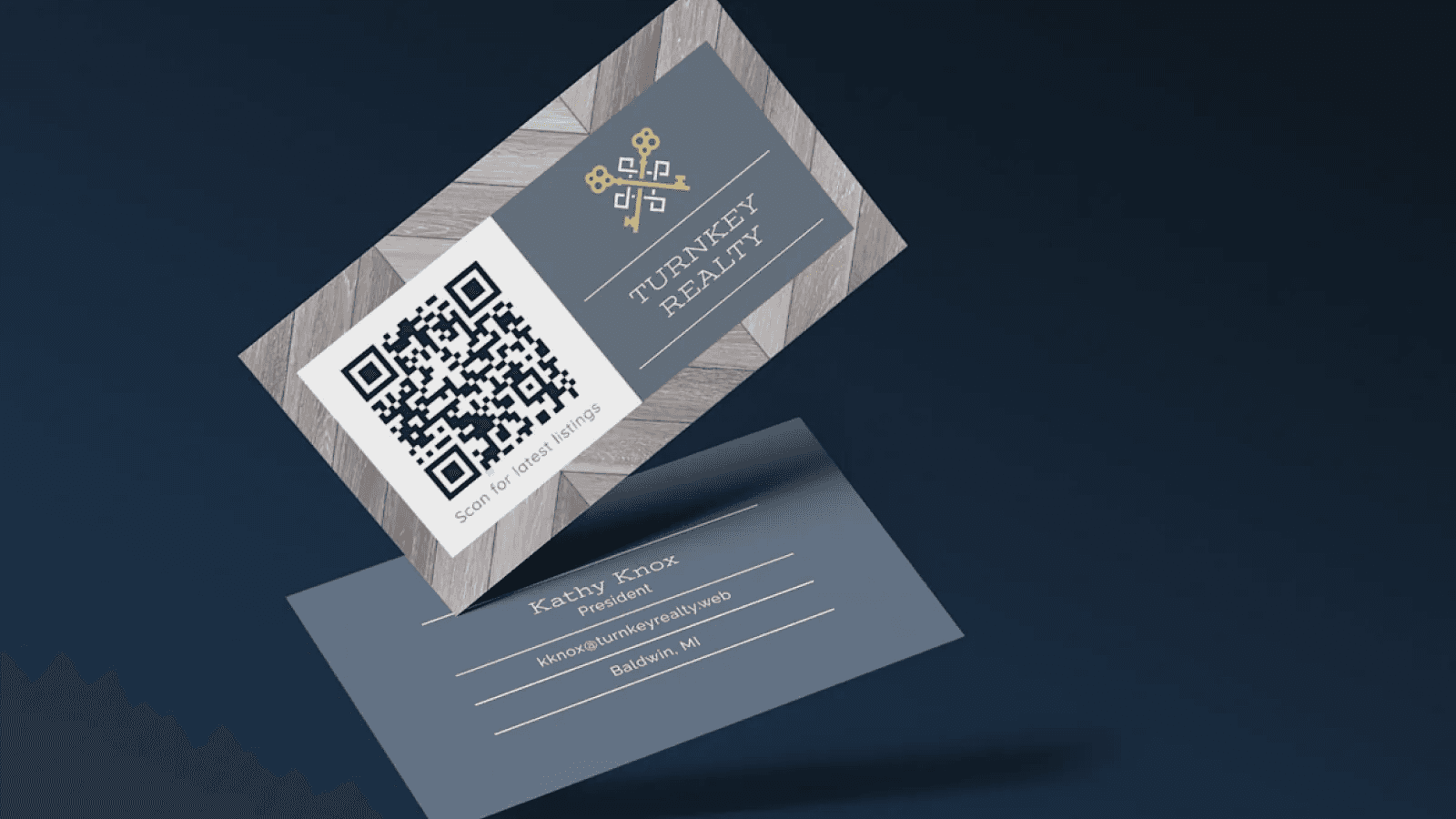
Adding your Instagram to a business card turns a static handoff into a dynamic invitation, giving people a reason to follow you, browse your work, and engage when they need you. Pair that handle with a QR code that points directly to a curated destination, and you increase the chance that the card becomes a starting point for a relationship, not a scrap of paper.
Why Does That Matter Right Now?
Research shows that 63% of business cards are thrown away because recipients do not need your services at the moment they receive the card, so the question is how you stay relevant until they do. This happens repeatedly at trade shows, breakfasts, and after panels. Cards pile up in pockets or on desks, then disappear. Instagram lets you replace that one-off encounter with an ongoing content feed that builds credibility and familiarity, which matters because social proof and consistent presence make future outreach feel natural instead of cold.
How Does Instagram Move Someone from a Pocket to a Follower?
Because Instagram has over 2 billion users, your profile is a place where prospects already spend time and discover brands, not a separate obligation. A glance at your grid shows work samples, client reactions, process insights, and personality so that a single scan can deliver far more context than a name and title. People follow accounts that offer applicable content and visible results, and the platform’s social features make following, sharing, and DMing low-friction next steps.
Why Add a QR Code Instead of Just Printing Your Handle?
A QR code eliminates friction from typing, searching, and guessing which account is yours, and lets you direct people to a specific destination beyond the profile. That matters commercially because 30–70% of shoppers shop directly on the platform, meaning Instagram is not just for branding; it can be a measurable commerce and lead channel when you design the journey correctly. A QR can point to a highlight reel, a storefront, a contact form, or a lead-capture landing page that converts interest into an immediate action.
What Makes a Card Actually Entice a Scan?
Treat the card like a teaser, not a directory. Use one short benefit line above or below the QR so people know what they get when they scan, for example, view a three-minute case study, see live pricing, or claim a consult. Place the code where a thumb naturally rests, add a small arrow or icon pointing to it, and keep surrounding copy minimal. Think about the experience the scan leads to, not just the scan itself, because the promise you make on paper must be fulfilled immediately on screen. That little choreography of promise and delivery is what turns a curiosity scan into a real connection.
How Do You Measure Whether This Actually Works?
The analytics are the point. QR-enabled cards let you track scans by location, event, time, and destination. When the captured contact is routed into a CRM with tagging and automation, you can see whether a scanned card results in a meeting, proposal, or sale. This pattern becomes clear as programs scale. Manual follow-up breaks down, spreadsheets fracture, and response rates decline. Solutions that combine physical QR/NFC cards with landing pages and CRM sync eliminate that fracture, reducing follow-up time and making ROI visible.
Related Reading
- Best Business Card Scanner
- What Makes a Good Business Card
- Business Card Trends
- QR Code Marketing Strategy
- What Are NFC Business Cards
- Professional Networking Tools
- New QR Code Technology
- Best Paid QR Code Generator
- What to Include on a Business Card
How to Add an Instagram QR Code to a Business Card
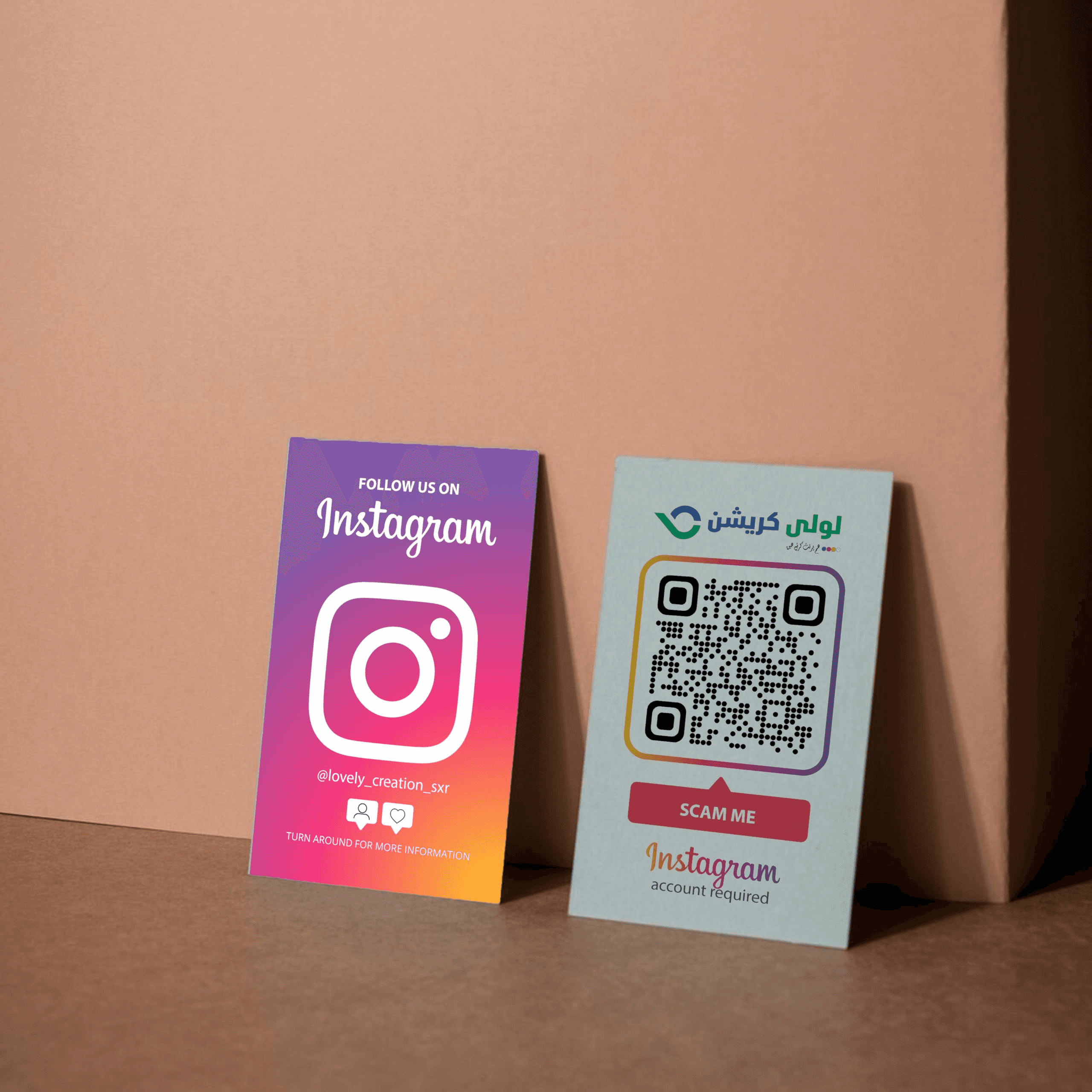
Start by choosing the method that best fits your priorities. Use Instagram’s built-in QR code for speed and simplicity, or use a third-party generator like QR Codes Unlimited for branding, dynamic links, and tracking. Then generate the QR, export a high-resolution file (PNG/SVG), place it with a clear, quiet zone on the card, and repeat print-and-scan tests with multiple phones and finishes.
Which Method Should I Pick, Instagram’s QR or a Third‑Party Generator?
If you want something immediate and no-friction, the Instagram app produces a profile QR in seconds. If you need brand colors, a logo, dynamic redirects, or analytics, choose a third‑party generator. Designers complain that Instagram’s built-in option is fast, but its limited customization undermines visual identity and tracking needs as campaigns scale.
How Do I Generate a QR Code Inside Instagram?
Open your profile, tap the menu, select QR Code, then save or take a screenshot of the result. That gives you a direct link to your profile quickly, which is helpful for last-minute prints or temporary needs. Keep in mind the file you export this way is not optimized for professional print workflows, so use it only when customization and tracking are not priorities.
How Do I Create a Branded, Trackable Instagram QR with QR Codes Unlimited?
- Visit qrcodesunlimited.com on desktop or mobile.
- Select URL, then paste your Instagram profile link or a specific post link.
- Customize the appearance, select colors, add a small logo, and choose a shape or finder pattern if available. Favor a conservative logo size so it does not swamp the code’s readable modules.
- Choose dynamic if you want to change the destination later or track scans, then download in the format you need (PNG for quick use, SVG or EPS for sharp print). Aim for 300 dpi export or a vector file for full quality.
- Test tracking in the platform, then integrate the QR into your card art file and print a proof. Dynamic codes prevent reprinting when links change and help you measure where and when scans occur.
Where Should the QR Code Go on the Card, and What Size Will It Scan Reliably?
Place the QR where it does not compete with primary contact details, typically on the back or a dedicated panel, and avoid edge gutters. Make the printed QR at least 2.5 x 2.5 cm (1 x 1 inch) for most smartphone cameras; for denser codes or added logos, increase to 3 x 3 cm. Leave a quiet zone of at least four modules of white space around the code, and keep it 4 to 6 mm from the card edges so trimming does not cut into the modules. Use a vector file to avoid pixelation at small sizes.
How Should I Test the QR for Real‑World Readability?
Print a single proof on the same stock and finish you expect to use, then run these checks:
- Scan with at least three different devices, including an iPhone camera and an Android camera or scanning app.
- Test at typical handoff distances (about 20 to 40 cm) and at shallow angles.
- Check in low, bright light and under standard finishes such as spot UV or laminate. Reflective varnish can kill contrast, so re-test after finishing.
- If you embedded a logo, confirm the code still scans; if not, lower the error correction or shrink the emblem.
- If a phone struggles at standard viewing distance, enlarge the code or simplify the URL by using a short redirect or a dynamic QR code to reduce module density.
How Do I Balance Branding with Scanner‑Friendly Design So the QR Doesn’t Overwhelm the Card?
Treat the QR like a functional object, not an ornament. Use no more than two brand colors in the code; maintain high contrast between modules and the background; and keep logos modest. If your visual system is busy, place the QR code on a dedicated negative-space panel or use a subtle frame to separate it. If a QR draws more attention than your name or title at a glance, scale it down or move it. For print-ready images, aim for each module to render at least 1.0 mm on the physical card; smaller modules are the usual reason codes fail to scan after printing.
What Are the Common Failure Modes and How Do I Avoid Them?
The most common mistakes I see are squeezing the code into a tight corner, printing without a quiet zone, embedding a logo that obscures key modules, and skipping cross-device testing. These errors persist because teams prioritize layout symmetry over function. When you need consistent behavior across a sales team or events, relying on ad hoc file versions breaks brand consistency and tracking.
What Quick Pre‑Print Checklist Should I Run Before Sending the Job to Press?
- Export a vector SVG or a 300 dpi PNG.
- Ensure contrast ratio is strong, with dark modules on a light background.
- Keep a 4-module quiet zone and 4–6 mm edge margin.
- Print the QR code on the final stock and provide a physical proof.
- Scan with multiple devices and under varying lighting conditions.
- Verify tracking and destination URL on dynamic codes.
Related Reading
- How to Put Linkedin on Business Card
- How to Share Linkedin QR Code
- QR Code Instead of Business Card
- QR Code Size on Business Card
- How to Scan QR Code on Iphone
- Aztec Code vs QR Code
- How QR Codes Work
- QR Code Analytics
- Linkedin QR Code Business Card
- How to Create Vcard
Best Practices for QR Code Business Cards
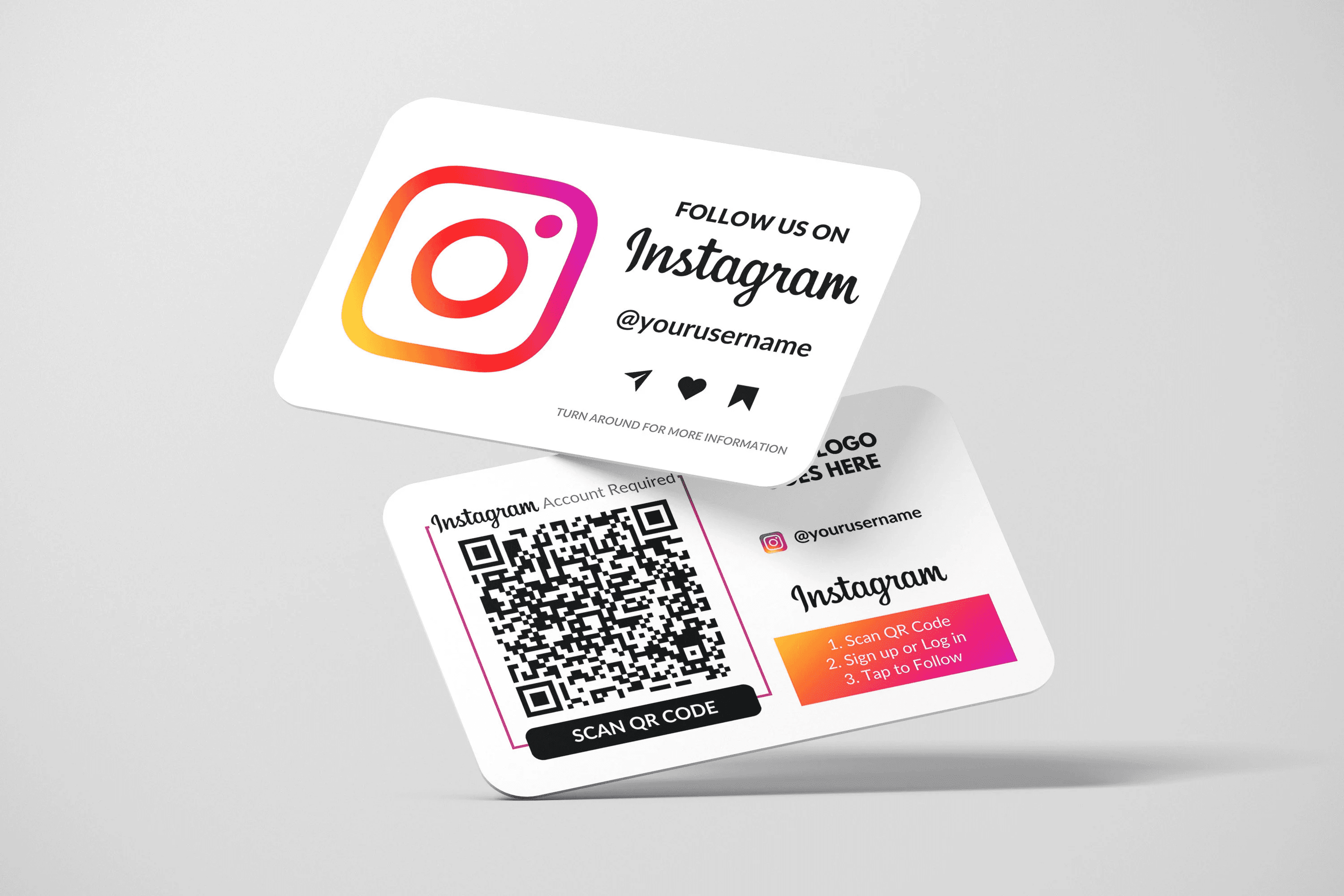
Good QR code business cards are less about decoration and more about predictable outcomes. They must scan reliably, signal value at a glance, and feed measurable engagement into your follow-up systems. Focus on visual clarity, purposeful copy, and a testing plan that treats scans as signals you can act on.
Keep it Clean and Consistent
The recurring failure mode is design-first thinking that sacrifices functionality, leaving recipients frustrated when the code won’t scan. Keep the code area visually calm, limit colors to one or two brand tones, and reserve a tidy margin so the camera can read the pattern. This isn’t aesthetic purism; it's about reducing user frustration so the card becomes a gateway rather than a dead end.
Ensure Proper Placement and Size of the QR Code
Think of placement as ergonomics, not decoration. Position the code where a thumb or index finger naturally rests when handing the card over, and give it a dedicated panel so competing elements do not interfere. For audiences who will scan from a table or a presenter’s stand, increase the printed size and avoid tiny modules that appear thin at low print resolution. Also, choose stocks and finishes that preserve contrast; some tactile treatments can help users find the code without visually overpowering it.
Add CTAs for Scanning the Code
Use microcopy that promises an immediate, clear benefit, not a vague instruction. Short prompts that name the outcome work best, for example, “View 3 quick case studies,” “Open pricing and availability,” or “Follow our latest projects." Test variations that trade intrigue for utility, such as benefit-first versus curiosity-first lines, and measure which CTA yields more scans that turn into actions on the landing page. Keep CTAs under seven words so they remain legible at small sizes and translate cleanly across languages.
Test the Code Beforehand
Treat QA like product QA, not a one-off scan. Build a simple matrix that checks multiple phone models, camera apps, and lighting conditions, then validate that the landing experience converts:
- Does the page load quickly?
- Does it preserve UTM tags?
- Does your form capture data?
Run short A/B experiments at a single event to see which visual treatments raise meaningful engagement, and treat any drop in scan-to-action rate as a signal to simplify the next iteration.
Align the QR Code Design with the Brand
Branding should help scanning, not hurt it. Create a brand-safe QR palette with a high-contrast fallback, and maintain a monochrome version for edge cases such as tight print runs or restricted finishes. If you add a logo, keep it small and set the validation error correction levels so the code still scans. Also, map each QR destination to a brand-controlled landing page so the visual promise on the card aligns with the first screen users land on, keeping the user journey trustworthy and consistent.
Create a custom design
When you use content from Instagram as a visual tease, crop deliberately, choose one striking image or a tightly edited collage that hints at your work, then reserve a clean band or panel for the QR code so the pattern never sits on top of busy imagery. For photographers or creatives, consider a small, high-contrast thumbnail from your feed next to the code, not behind it, so curiosity leads directly to scanning rather than confusion.
Use a Nametag
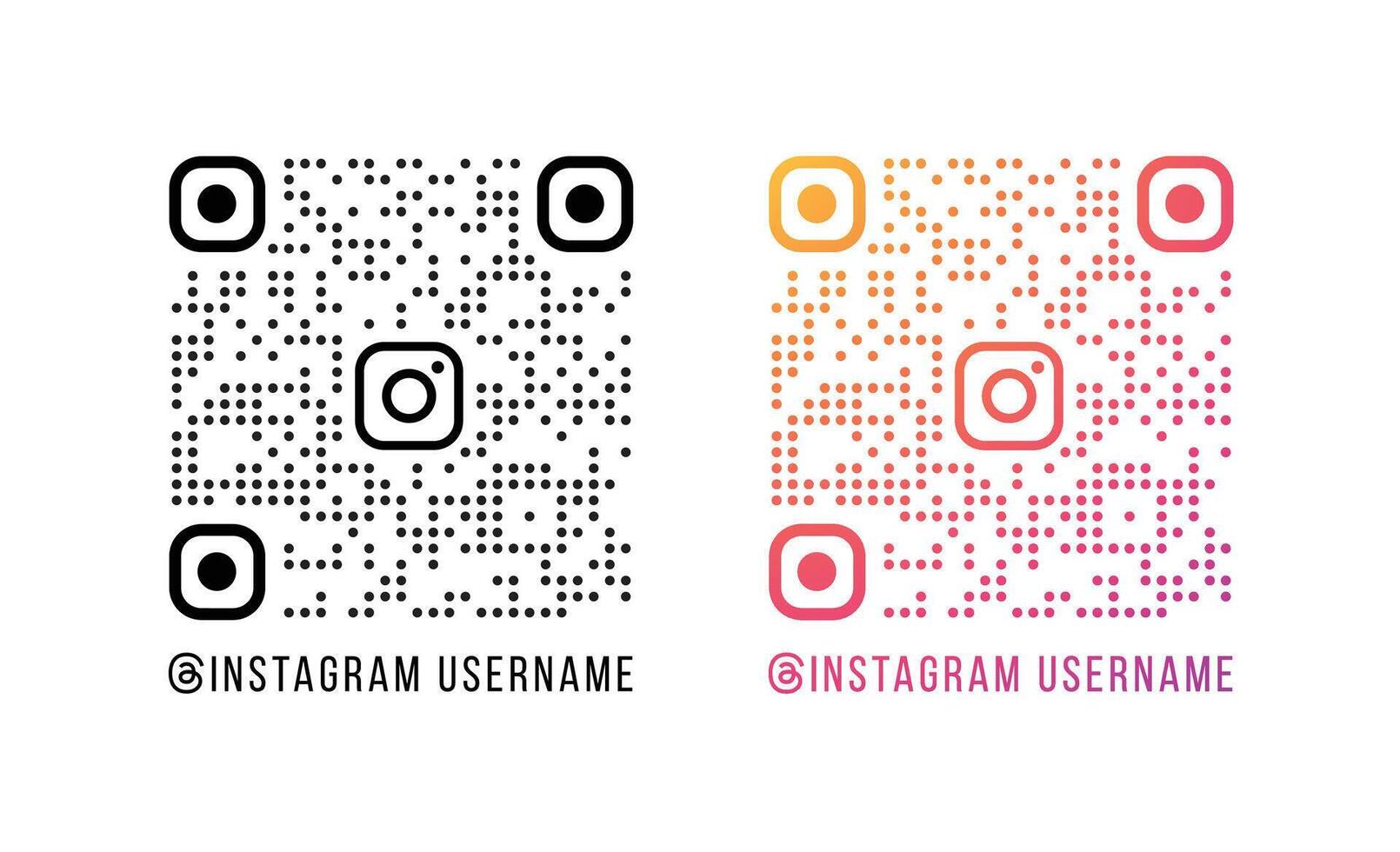
If you include an Instagram name tag, treat it as redundant rather than the only option. The nametag is suitable for in-app scanning and social-native discovery, but pair it with a branded QR code that links to a tailored landing page. That way, different scanning contexts lead to the same controlled outcome, preserving tracking and follow-up without forcing recipients to guess which method the sender prefers.
Use Icons Related to Your Niche
Select one to three small icons that reinforce the card’s promise, such as a camera for photographers or a fork for food creators, and keep their style minimal and the stroke weight consistent with the rest of the card. Use icons as visual anchors that point to the QR code, not as decorative clutter; when icons compete with the code, scan reliability drops.
Operational Tips You Can Act on This Week
- Version control your QR assets, export a vector for every print run, and label files with campaign, language, and date so the printer never guesses.
- Bake short URLs and UTM parameters into dynamic redirects so you can A/B test CTAs and landing pages without reprinting.
- Add tactile or visual scan cues, such as a subtle frame or notch, so the recipient can locate the code without searching the card.
- If you ship cards to a distributed sales team, create a one-page QA guide they must follow before ordering prints, and automate analytics tagging at source.
Book a Demo Today and Get your First 25 Cards Free (Worth $950)
If you want the Instagram QR on your business card to start generating predictable conversations, Mobilo makes the integration results-oriented and straightforward, turning each scan into enriched, CRM-ready leads with omnichannel sharing and automated prospect scoring. Ready to transform your team's networking and generate 10x more leads at every event? Book a demo today and get your first 25 cards free.
Related Reading