.avif)

How To Design a LinkedIn QR Code Business Card That Stands Out
On This Page
Picture a caller who scans a LinkedIn QR code business card and lands on a full vCard with account details before the agent even says hello. QR-enabled business cards and digital business card tools speed up customer verification, cut repeat questions, and make handoffs smoother. This article outlines practical ways to use QR codes and mobile contact sharing to raise CSAT scores in your call center by improving service quality and efficiency without adding headcount or incurring extra costs.
Mobilo's digital business card turns that flow into reality with scan-to-connect actions, quick profile pops, and easy lead capture, so agents spend less time searching and more time helping. It supports contactless networking and virtual business card needs while keeping costs down and headcount steady.
Summary
- Post-event LinkedIn connections rarely convert; only 10% lead to meaningful interactions, which explains why many follow-ups evaporate within 48 to 72 hours.
- Adding contacts without context is ineffective: 70% of professionals report that adding LinkedIn connections after events does not improve their professional network, underscoring the need to capture meeting context in real time.
- Making profiles scannable increases attention, as LinkedIn QR codes can boost profile views by up to 50%, thereby narrowing the window where immediacy increases acceptance rates and reduces follow-up friction.
- Adoption of scannable cards is widespread, with over 70% of professionals having switched to LinkedIn QR code business cards, which signals that audiences increasingly expect a mobile-first, scan-ready workflow.
- Design and context matter, as businesses using customized QR codes see a 30% higher scan rate, and small cues like an event name or a one-line CTA materially increase immediate engagement.
- Scale and measurement are critical, given that LinkedIn has over 700 million users and over 50% of professionals use it for networking. Converting scans into CRM-ready leads preserves value and enables event ROI tracking.
Mobilo's Digital Business Card addresses this by converting QR and NFC scans into structured lead data, capturing meeting context, and routing contacts into CRM workflows, while supporting enterprise controls such as SSO, SOC 2, and GDPR compliance.
Why Adding LinkedIn Connections After Events Fails
Most people leave events with a stack of cards or a mental note to “connect later on LinkedIn,” then assume that the job is done. That workflow breaks down fast because friction and memory decay turn good intentions into stale connections, and those delayed requests often feel impersonal, get ignored, or vanish in crowded inboxes.
Why Don’t Connections Turn into Real Conversations?
Connections are a visibility layer, not a conversion engine. LinkedIn provides a name and a signal, but it does not offer a reliable way to capture meeting context, attribute leads to an event, or push that contact into a sales workflow. Imagine dozens of qualified contacts scanning your profile after a webinar and leaving without a clear call to action; you end up with profile visits, not CRM-ready leads. This pattern appears consistently at trade shows and executive roundtables, where the familiar habit of “we’ll just connect on LinkedIn” results in orphaned contact lists that never convert.
Why Are LinkedIn DMs Unreliable for Follow-Up?
LinkedIn messaging works for an initial hello, but it is not a conversation management tool. It lacks tagging, reminders, and CRM syncs, so when someone replies weeks later, the context is gone, and the next step is unclear. After auditing enterprise sales teams across several event cycles, the failure mode was transparent. Follow-ups slip because messages cannot be routed, prioritized, or enriched with meeting notes as they can in purpose-built systems.
Why Do Posts and Reactions Not Produce Outcomes?
Likes and comments are easy to get and hard to monetize. A post that generates engagement without a next step creates fuzzy momentum. People feel seen, but nothing on the platform compels them to take a measurable action, such as downloading a brief, submitting a meeting time, or sharing contact details with tracking. That missing CTA is why public engagement rarely becomes a pipeline.
When Follow-Up Falters, What Actually Happens to the Conversation?
Collecting business cards or making a mental note seems practical until you factor in human memory and event fatigue. This challenge appears at sales kickoffs and networking breakfasts. A contact seems promising in the moment, but within 48 to 72 hours, the details blur, intentions cool, and those conversations evaporate. That exhaustion is absolute; trying to manage dozens of post-event touchpoints by hand quickly overwhelms even disciplined teams.
What Does This Actually Feel Like to Teams and Reps?
It’s exhausting when follow-up becomes a triage problem. Reps spend hours reconciling fragmented notes, hunting down names, and rebuilding context from memory. The emotional toll manifests as delayed outreach and defensiveness. You start prioritizing only the warmest prospects and letting the rest fall through the cracks. That choice creates quiet leakage in your pipeline; good conversations that would have become opportunities simply disappear because they were never captured with next-step clarity.
Related Reading
- Best Business Card Scanner
- What Makes a Good Business Card
- Business Card Trends
- QR Code Marketing Strategy
- What Are NFC Business Cards
- Professional Networking Tools
- New QR Code Technology
- Best Paid QR Code Generator
- What to Include on a Business Card
How LinkedIn QR Code Business Cards Simplify Professional Networking
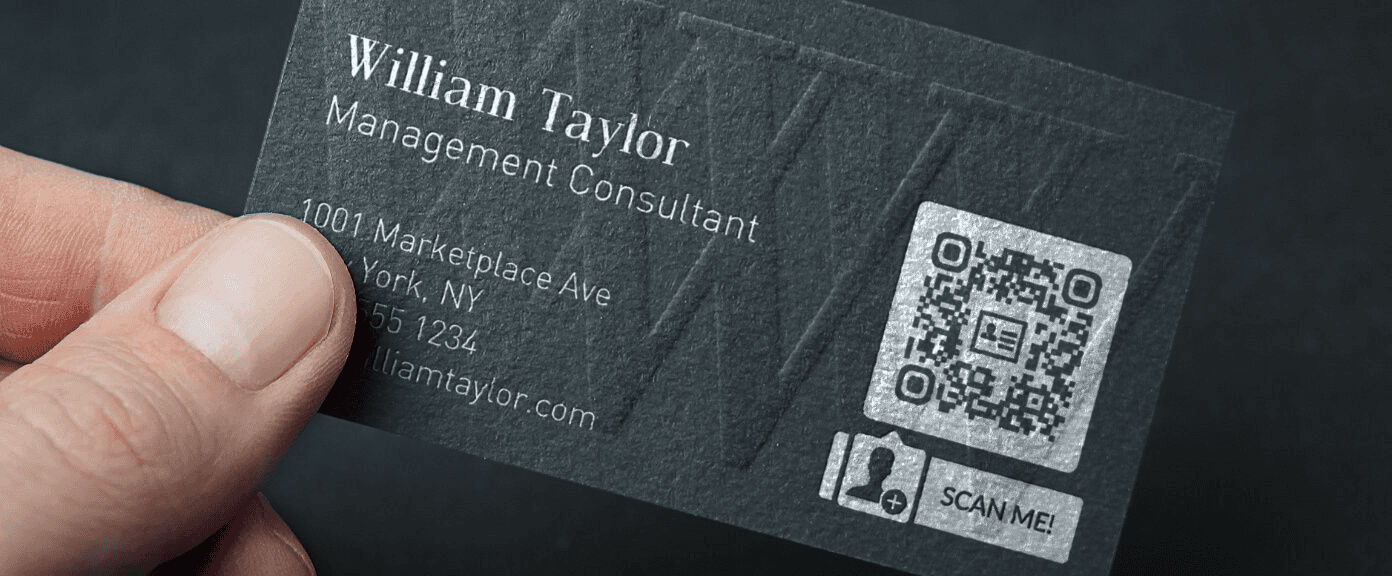
LinkedIn QR code business cards solve the breakdown between a moment of interest and a meaningful connection by making the match immediate, verifiable, and actionable. They let you capture the context and consent of a conversation while attention is close, turning ephemeral interactions into prioritized, traceable leads rather than hope and guesswork.
Think of Your Card as a “Digital Handshake”
A physical card gives a name; a LinkedIn-scannable card provides identity. When someone scans your QR, they see a profile photo, mutual connections, endorsements, and recent posts, all of which serve as instant social proof. That third-party validation shortens the trust curve and reduces the awkwardness of follow-ups when someone has to rely on memory or a vague note.
Builds Instant Credibility and Trust: Why immediacy matters
Immediate verification matters because credibility is a transaction, not a claim. When a prospect can confirm your background on the spot, they no longer owe you the benefit of the doubt. That clarity raises the acceptance rate for connection requests and makes the first message less scripted and more specific. Profiles receive more views when scanning is easy, which is why LinkedIn QR codes can increase profile views by up to 50%. That extra attention matters in the window when decisions to engage are still being formed.
Turns a “Passive” Touchpoint into an “Active” Lead: How action changes behavior
This is not about novelty; it is about shifting effort. A scan asks the recipient to act now, and action embeds intent. The psychological gap between meeting someone and reconnecting is where opportunities leak; a scan collapses that gap. Practically, scans create a timestamped footprint you can use to prioritize outreach. People who were scanned at an event are warmer than those who were only emailed a week later. The pattern appears repeatedly at product demos and regional meetups. Immediate actions correlate with faster, higher-quality follow-ups.
Saves Your Card from the Trash: Permanence and pipeline value
A paper card is a fragile promise; a digital connection is permanent and searchable. Beyond preservation, a scan supplies a deterministic identifier you can map into CRM fields and enrichment steps. That single action converts an analog artifact into a lead with context, and when your team needs to measure event ROI or run targeted follow-up sequences, that data is usable. Solutions that pair LinkedIn QR codes with governed digital landing pages keep branding and privacy controls consistent while converting a casual hello into CRM-ready information.
Best Ways to Display Your LinkedIn Profile
The method you choose signals different priorities. The plain-text URL is conservative and low-friction for print design, but it requires the recipient to copy or type it. The QR code is an explicit call to action that invites immediate engagement and fits a mobile-first workflow. Use both. Include a clean custom URL for manual entry and a prominent QR code as the visual CTA, so the card works for every prospect. Adoption reflects this shift, with over 70% of professionals having switched to using LinkedIn QR code business cards for networking. That majority matters because accessibility and expectation now vary by audience, and the hybrid approach ends the either-or.
Using a LinkedIn URL vs. a QR Code
Think of the URL as a bookmarked suggestion and the QR code as a direct link. If your priority is design minimalism, a custom LinkedIn URL (e.g., linkedin.com/in/yourname) is the winner. If your priority is conversion speed and measurable action, a QR code wins. From a practical standpoint, the QR code serves as the frontline signal a rep uses to capture intent; the URL is the fallback for low-tech scenarios. Good card design treats the QR as the primary CTA and the URL as the backup.
The “Pro” Insight: Static vs. Dynamic QR Codes
Static codes are simple, free, and fixed. That simplicity has a maintenance cost. A new job title, a new campaign, or an updated destination means reprinting. Dynamic codes introduce a small degree of indirection, like a forwarding address you control. You can update destinations without reprints and collect analytics on scans, time, and geography. Think of static as a stamped address and dynamic as a forwarding service that also logs deliveries. That logging is the real advantage, because it turns a scan into a signal you can prioritize in sales workflows and event follow-ups.
Practical Tradeoffs to Recognize
Dynamic QRs add subscription and dashboard overhead and require teams to define ownership and retention policies up front so analytics remain actionable and compliant. When the goal is centralized governance and audited rollouts, dynamic code almost consistently outperforms static code.
How to Create a LinkedIn QR Code Business Card
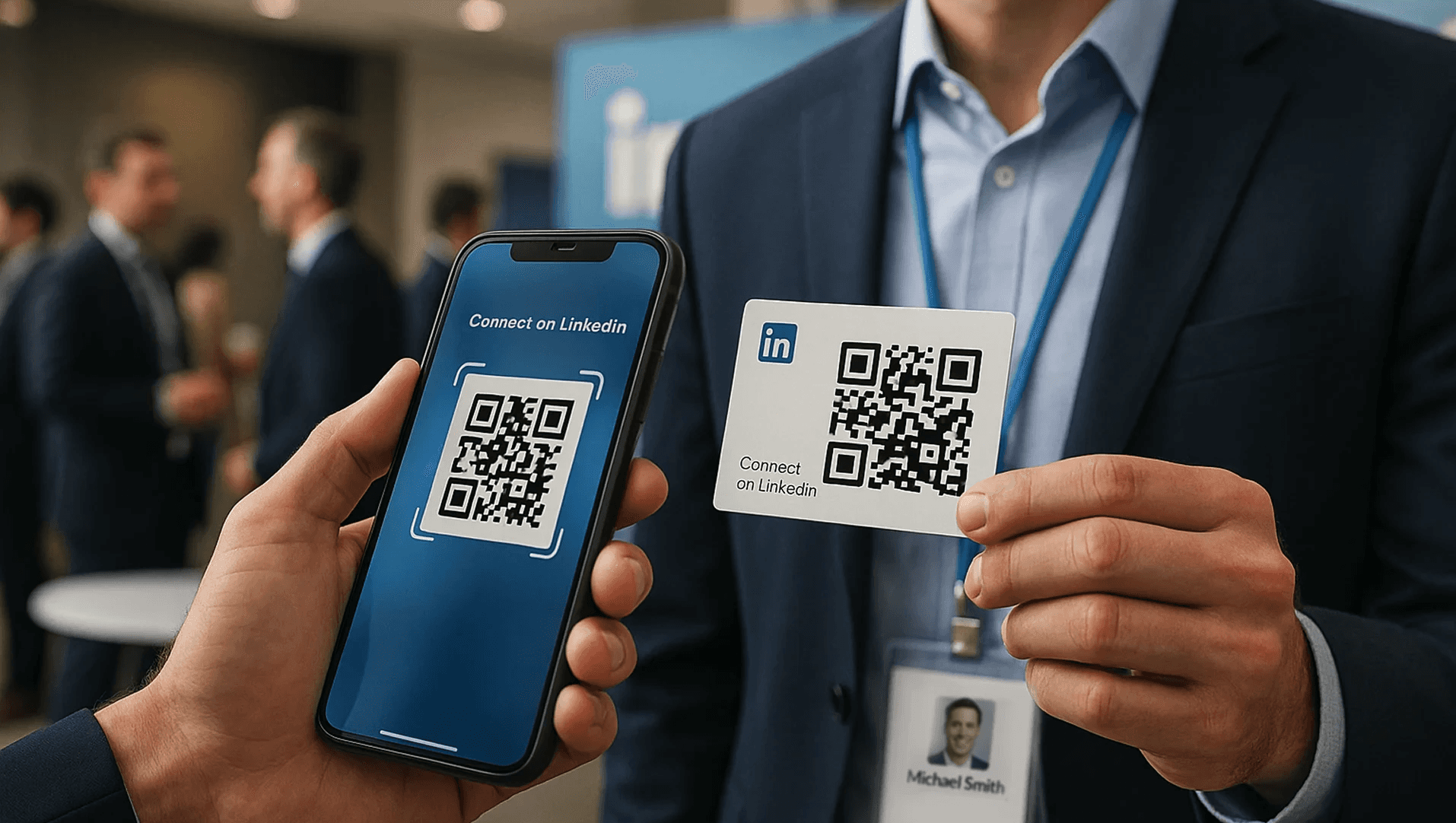
Generating a LinkedIn QR code and turning it into a reliable, branded business card is a short sequence of practical steps:
- Create and save your official QR from the LinkedIn app
- Choose the right profile destination and file formats
- Design for scanning and accessibility, print proofs
- Distribute with clear CTAs and tracking so each scan becomes a CRM-ready lead
The instructions below walk you through each step with decisions you’ll actually make, standard failure modes to avoid, and remediation tactics you can use immediately.
1. Generating Your LinkedIn QR Code
Open the LinkedIn app on your Android or iOS device, tap the small QR icon in the search bar, and choose “My code” to view and save the image. Decide up front which LinkedIn destination you want embedded, such as a personal profile, a company page, or a short, branded landing page you control for campaign tracking. Save the QR as a high-quality PNG to your Photos app so you can import it into design tools without recompressing.
Which Profile Should You Link To?
If your goal is relationship-building and credibility, link to your personal profile with a polished headline and current photo. If the aim is campaign attribution, use a short, controlled URL that forwards to LinkedIn via an individual landing page. That provides analytics without requiring reprints when job titles or campaigns change.
(Optional) Customizing Your LinkedIn Profile URL and QR Code
Before you generate or customize a QR code, clean up the profile URL on a desktop, then create a dynamic QR code if you want live redirects and scan analytics. Export both a static PNG and, if available, an SVG for resizing. Keep the branded version visually consistent with your company colors, but test every stylized variation for scan reliability before committing to print or mass distribution.
2. Designing Your Business Card with a LinkedIn QR Code
Design in RGB for digital proofs and convert to CMYK with a high-res export for print, at least 300 dpi for the final artwork. Keep a clear, quiet zone around the QR code, place it in a visually prominent spot, and pair it with a short textual fallback, such as a customized LinkedIn URL (e.g., linkedin.com/in/handle). Add a one-line CTA, such as “Scan to connect,” to make the action explicit.
How Do You Make the Card Accessible?
Treat the QR as a progressive enhancement, not the only path. Include the plain URL and an email or vCard link on the card or landing page. For digital versions, add alt text to the QR image and ensure that clicking the image opens the same destination. This gives people with visual or device constraints a clear alternative path.
3. Printing Your Business Cards with a LinkedIn QR Code
Choose a matte or soft-touch finish to avoid glare that confuses camera autofocus, and print proof runs on your chosen stock. Ask your printer for a 300 dpi or higher rasterized QR at the actual print size, with no scaling after export. Request a color-contract proof and two physical samples, then scan them with multiple phone models and QR apps before approving the whole run.
How Big Should the QR Be on the Card?
Keep the printed QR large enough to scan from typical conversation distance, and allow at least the minimum safe margin on all sides. If you plan to use the same image across multiple channels (resume, email signature, badge), export scaled versions and confirm each one scans reliably.
Best Practices for Sharing and Using Your LinkedIn QR Code Effectively
Place printed cards where they’re easy to see and reach during an exchange, and include the QR in digital touchpoints, email signatures, digital business cards, and personal landing pages. Label the QR with a short benefit statement so scanning feels purposeful, not gimmicky.
How Do You Make Scans Actionable for Sales Workflows?
Use a dynamic QR or post-scan landing page that captures the event context, consent, and any immediate next step, such as a calendar booking or a one-click “save contact” flow. That slight friction, captured at the moment of interest, turns casual profile views into prioritized leads.
Practical Friction We See: Rollout Delays and Scan Failures
When teams pilot new cards, the pattern is consistent. Production delays for custom printing and untested finishes frequently delay deployment by days, and poor print quality accounts for most early scanning failures. It is exhausting for reps when the cards arrive late, or worse, when they look great but do not scan reliably in front of a prospect. Plan for a short proof cycle and include scanning tests in the acceptance criteria to avoid expensive reprints.
4. Exploring Additional Applications of Your LinkedIn QR Code Beyond Business Cards
Put the QR on ID badges, printed conference materials, and digital event decks, and embed it in email signatures so every outbound email becomes a touchpoint. For recruiters, add it to job postings or booth banners so candidates can easily find your profile and apply. Each placement should consider context and give a clear next step after scanning.
How Do You Measure Impact Without Violating Privacy?
Use scan logs and landing page conversions as coarse engagement signals, then enrich those records with consented data and route them into gated CRM fields. Keep retention policies and access controls explicit so analytics remain functional and compliant.
Troubleshooting Common Issues with Generating or Scanning Your LinkedIn QR Code
If the QR icon is missing in the LinkedIn app, update the app and restart. If your organization prefers a branded redirect, create a short URL that forwards to the LinkedIn profile, and generate a QR code from that URL using a dynamic provider so you can change the destination without reprinting.
Why Won’t Some Cards Scan, and How Do You Diagnose the Root Cause?
Start with the obvious checks: confirm that the printed QR matches the exported image exactly, test contrast under different lighting conditions, and scan with multiple devices. If only certain phones fail, the issue is often low contrast or reflective finish; if all phones fail, the raster resolution or artwork scaling is usually wrong. Request a higher-resolution export from the design, or switch to a solid, high-contrast color palette for the QR code.
Related Reading
- How to Put Linkedin on Business Card
- How to Share Linkedin QR Code
- How to Add Instagram QR Code to Business Card
- QR Code Instead of Business Card
- QR Code Size on Business Card
- How to Scan QR Code on Iphone
- Aztec Code vs QR Code
- How QR Codes Work
- QR Code Analytics
- How to Create Vcard
Tips for Making Your LinkedIn QR Code Business Card Stand Out

Design choices, branding consistency, contextual cues, and a clear call to action are what turn a scannable QR on a card into an actual follow-up. Small signals on the card, timed moments during a conversation, and an actionable post-scan landing experience together determine whether a scan becomes a calendar invite or a forgotten notification.
Customizing Your LinkedIn URL for Branding
This is non-negotiable. Printing a default URL looks careless and reduces trust at first glance. Use a short, memorable handle that signals function or industry, for example, “linkedin.com/in/janedoe-sales” rather than a long autogenerated string. If you need campaign-level tracking without reprints, point the printed URL at a short redirect you control so you can update the destination later without producing new cards.
Here is the quick fix on the desktop:
- Log in to LinkedIn and click the “Me” icon in the top-right.
- Select “View Profile”.
- Click “Edit public profile & URL” in the top-right corner.
- Under “Edit your custom URL,” click the pencil icon.
- Type your new custom URL, then click “Save.”
Pro tip: If YourName is taken, add your function or a conference shorthand, such as YourName-Sales.
Where to Place LinkedIn on Your Business Card
Hierarchy matters more than decoration. Put the LinkedIn icon and URL with your other digital contacts so people find everything in one scan. Reserve the back for the action element, a large QR code, and a one-line CTA. When handing the card, present it after you establish relevance, not as a perfunctory swap at the start. If you show the card while saying, “Scan to see the two case studies I mentioned,” the scan has context and purpose, and follow-through climbs.
Design Tips for a Professional Look
What makes a card irresistible is clarity, not novelty. Give the QR a generous quiet zone and pair it with a short benefit line, for example, “Scan to view product ROI” or “Scan to schedule 10 minutes.” Use consistent brand color and typography so the card reads as a deliberate touchpoint, and test any branded code for scannability before committing. Businesses that use customized QR codes see a 30% higher scan rate. When we audited event pilots, the pattern was clear. A small piece of context, such as the event name or role on the card, increased immediate scans because recipients could judge relevance at a glance.
Printing Considerations for QR Codes
Print quality can either undermine or strengthen your credibility. Ask your designer for a vector or very high-resolution export of the QR, and request that the print shop not apply halftone screening to the code area. Avoid spot varnish or glossy finishes that create glare over the QR region. For small runs, request a physical proof and scan the sample on multiple phone models under varying lighting conditions. If any phone fails to scan, increase the size or contrast. Also, label the QR with a clear fallback URL or short handle for low-tech users.
Mistakes to Avoid When Adding LinkedIn
The most common failure is a mysterious QR code with no instructions, followed by a surprise when it fails. Static codes look fine until titles change or campaigns pivot, at which point you face costly reprints. Putting five social icons on a professional card dilutes the action; a card should have one clear ask. This pattern appears across roadshows and recruiting events. Teams default to quick fixes, then pay in reprints, lost context, or unusable scan data when they scale.
Other Social Media to Include (or Skip?)
Keep the card focused. For B2B and enterprise networking, LinkedIn is the primary professional signal; adding personal platforms usually confuses recipients and reduces conversion rates. 85% of professionals believe that having a digital business card makes them stand out in networking events. If you need to surface other channels for specific roles, put them on the post-scan landing page, not on the printed card.
When to Hand the Card and How to Verbally Cue a Scan
Timing and wording change outcomes. Hand the card at the end of a valid exchange and invite a specific next step, for example, “If you want the one-pager I mentioned, scan this, and I will ping you the PDF.” A short spoken instruction reduces hesitation and increases scan follow-through by making the card immediately useful. Think of the card as a doorway; the CTA is the doormat telling people where the room leads.
Book a Demo Today and Get your First 25 Cards Free (Worth $950)
Book a short Mobilo demo, and we will walk you through a live setup of a LinkedIn QR Code business card workflow, from on-card QR and NFC to the post-scan landing experience, lead scoring rules, and CRM field mapping so you skip weeks of trial-and-error and start a measured pilot. Platforms like Mobilo can transform your team's networking and generate 10x more leads at events. With your first 25 NFC/QR smart cards free (worth $950), you can run a risk-free test with real attendees and prove you are capturing follow-up-ready contacts, not just adding another tool.
Related Reading