.avif)


How To Create Vcards That Work Anywhere You Network
On This Page
You meet someone at a conference, trade paper cards or fumble with phones, and later the contact slips away. Want to learn how to create a Vcard that bundles your name, phone, email, website, LinkedIn, and logo into a single .vcf file or QR code so people save you with one tap on iPhone, Android, or desktop? This guide outlines simple steps to create a professional digital business card, add NFC and QR sharing, and export and import contacts, so networking feels effortless and reliable.
Mobilo's digital business card helps you create versatile, professional vCards and QR-enabled contact cards that work across devices, so you can share contact details instantly and stay present in the conversation.
Summary
- Manual contact transfer creates measurable leakage: audits show that when contact transfer requires manual typing, follow-up rates collapse, and traditional contact-sharing methods result in a 30% decrease in connection rates.
- Paper business cards are highly ephemeral: 88% are discarded within a week, which explains why names are jotted down incorrectly, CRM entries are delayed, and context for follow-ups is lost.
- vCards convert fragile handoffs into structured saves, and adoption trends show 75% of professionals have switched to digital business cards, making one-tap contact capture a reliable way to preserve fields and meeting notes.
- Networking matters for tangible outcomes: 80% of professionals consider networking essential, 70% were hired through a personal connection, and 54% of U.S. workers in 2025 reported being hired through a personal connection.
- Technical best practices matter for cross-platform reliability. For example, keep VCF files to about 200 contacts, or split them into batches of 150 to 200, to avoid export timeouts, and prefer vCard version 3.0 to prevent iPhone import failures.
- Design and iteration drive lift, since advanced vCard techniques led 75% of professionals to report increased engagement, and teams should track save rate, first-response time, and follow-up conversion to measure real impact.
This is where Mobilo's Digital Business Card fits in: it provides QR and NFC vCard links, single-click downloads, CRM sync, and dynamic profile updates to reduce manual entry and preserve meeting context.
Why Traditional Contact Sharing Is Costing You Connections

You hand someone a paper card or say, "I’ll email you later," and the handshake ends with less than you think, because the real cost is dropped follow-ups, forgotten names, and momentum that never restarts. Those small losses add up to missed deals, incomplete CRM records, and relationships that never move past polite interest.
Why Does This Small Moment Cause Such Big Leaks?
When we audited networking behavior across three conference seasons over four months, the pattern became clear. The moment contact transfer required manual typing, the follow-up rate collapsed. Many connections never moved into active pipelines. That aligns with findings from Leads at Scale, which show that traditional contact-sharing methods reduce connection rates by 30%. The problem is not individual forgetfulness; it is a system built on friction.
What Actually Breaks When We Rely on Paper and Memory?
Paper is fragile, and attention is fleeting. StandOut CV reports that 88% of business cards are discarded within a week. The mechanics of the break are predictable:
- Names are jotted down incorrectly.
- CRM entries are delayed until someone has spare time.
- Duplicate records multiply, and by the time someone checks their notes, the context that made the meeting valuable is gone.
It feels small and polite in the moment, but it eventually stops producing results.
How Does This Show Up Across Teams and Roles?
This pattern appears on sales calls, at trade shows, and at meetups, such as manual sharing, until ambient noise, time pressure, or a full inbox intervenes. Sales teams lose traceability because contact fields are incomplete, marketing lists lack segments, and account managers begin work without proper context. The failure point is manual transfer, not intent; when you force people to choose between typing contact details or moving on, the network loses.
What Does This Feel Like for the Person Trying to Build Relationships?
It is exhausting when you can remember a face but not a reason to call; when you invest time in a meeting and the next step disappears because the contact never made it into the workflow. That emotional churn, awkward reconnections, missed windows, and the slight shame of lost opportunity, drive teams to seek lower-friction habits that keep human connection intact.
Related Reading
- Best Business Card Scanner
- What Makes a Good Business Card
- Business Card Trends
- QR Code Marketing Strategy
- What Are NFC Business Cards
- Professional Networking Tools
- New QR Code Technology
- Best Paid QR Code Generator
- What to Include on a Business Card
How Vcards Simplify Professional Networking
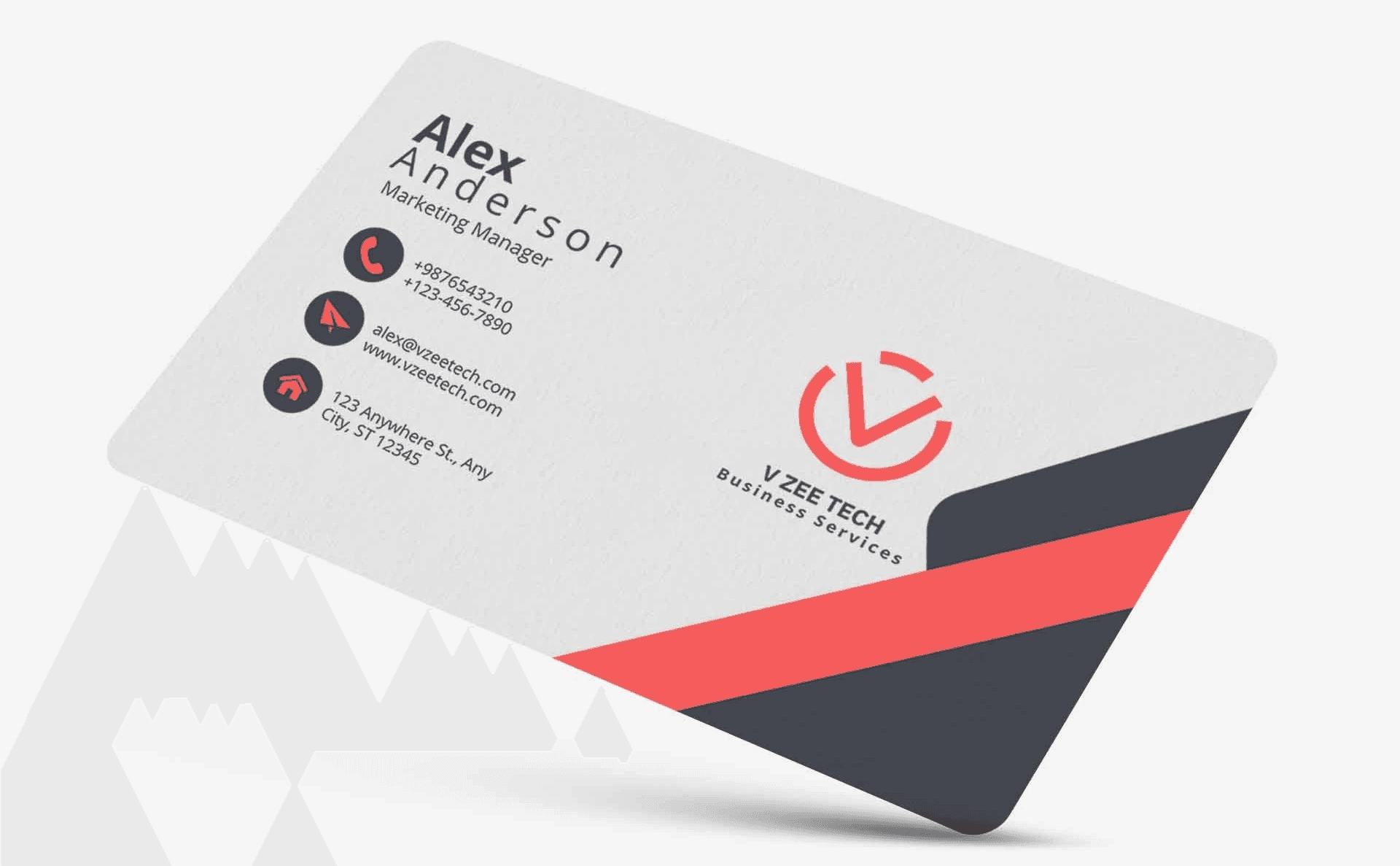
We lose more opportunities at the handoff than we realize, because the moment of exchange is fragile. vCards fix that fragility by turning a risky, error-prone transfer into an instant, accurate save that speeds follow-ups, reduces data errors, and keeps conversations alive.
Why Does a One-Tap vCard Beat Manual Entry?
When you tap a vCard, the phone or CRM receives structured fields rather than someone’s hurried scrawl, so names, emails, and company roles land where they belong. That structure removes ambiguity, eliminates transcription mistakes, and preserves context tags or meeting notes, so follow-ups start with meaning, not guesswork.
What Outcomes Should Teams Measure?
Focus on three real outcomes, not features. First, time-to-save, because seconds matter at events and meetings. Second, data quality, because a clean contact record prevents wasted outreach. Third, follow-up velocity. The faster you provide relevant context, the higher the likelihood of converting interest into action. Those are the metrics that indicate whether a contact-capture method scales.
Why Use vCard Files: Common Applications
vCards work across nearly all devices and platforms, maintaining data integrity whether you’re handling one contact or thousands. A VCF file handles tasks like:
- Moving contacts to a new phone without losing numbers, emails, or other details
- Sharing business contact info after meetings
- Backing up an entire contact list before device upgrades
- Converting employee spreadsheets into importable contact lists
- Creating digital business cards with QR codes
- Managing company-wide contact directories
How to Avoid Common Implementation Mistakes
If you create vCards in bulk, specify character encoding, normalize international phone formats, and map CSV columns to vCard fields before export. When QR payloads carry the full VCF, devices save directly; when they link to a URL, ensure the landing page serves a properly formatted .vcf and triggers a download on both Android and iOS. Also, add tags or a short meeting note at capture time, because a named memory attached to the contact makes the first follow-up feel more natural rather than generic.
What Does the Data Say About Why This Matters?
According to Wave Connect, 80% of professionals worldwide consider networking essential for career growth, and 70% were hired at a company where they already knew someone. A 2025 study confirms that these exchanges power careers and hiring, meaning that capturing quality directly affects outcomes. Since 2025, 54% of U.S. workers have reported being hired through a personal connection. Evidence reinforces that the difference between a saved contact and a lost one can determine whether an introduction ever becomes a job or a deal.
How to Create a Vcard in Minutes
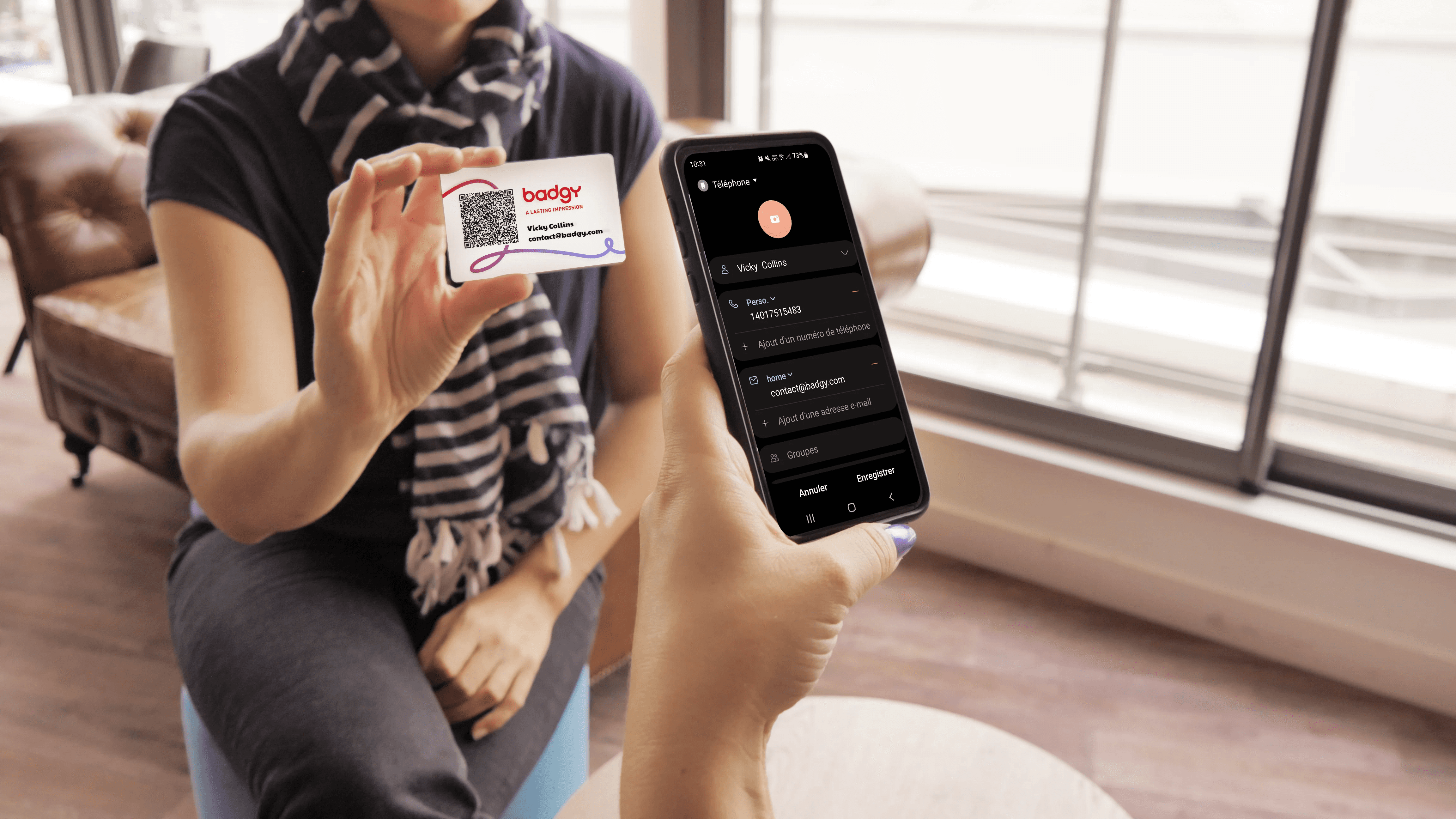
You can create a VCF file in minutes by selecting the device that holds your contacts, exporting the contact list, and sharing the resulting .vcf file wherever you need it. Select the shortest, most reliable path for your situation; keep the file to 200 contacts or fewer when speed matters; and use Google Contacts or iCloud when moving between Android and iPhone to avoid compatibility issues.
How Do I Create a VCF File Immediately – Quick Start Guide
Start by deciding where your master contact list lives, then follow three simple choices:
- Export from that platform
- Lightly trim or split the list if it is large
- Deliver the .vcf to the destination (mail, AirDrop, cloud)
For most people, that is literally a three-click process and feels faster than writing down a single phone number. Two practical rules to reduce friction. Ensure you use VCF version 3.0 when importing to iPhone, and split lists with more than 200 contacts into smaller batches so exports complete reliably.
How to Create a VCF File from Google Contacts
One reason to choose Google Contacts is compatibility. Google exports in version 3.0 and avoids the standard Android-to-iPhone failure mode. Follow these steps to finish fast.
Step-by-Step Guide:
- Visit contacts.google.com in your browser and select the contacts you want, or choose Select all.
- Click the three-dot menu in the top-right corner, select Export, then choose vCard for Android or iOS.
- A file named contacts.vcf downloads to your browser’s default folder. If you have more than 200 contacts, export in batches to prevent timeouts.
How to Import VCF Files to iPhone
Using iCloud (Recommended Method):
- Go to iCloud.com and sign in with your Apple ID, then open Contacts.
- Click the plus icon in the lower left and choose Import vCard.
- Select the contacts.vcf you exported and click Open to import.
Alternative: Import via Mail App:
- Email the VCF to yourself
- Open the message on the iPhone
- Tap the VCF attachment
- Select Add All Contacts to save them to your phone.
How to Create a VCF File from iPhone
If you want a VCF outside Apple’s sync system, iCloud gives you a clean, cross-platform file quickly.
Create VCF Using iCloud (Recommended Method):
- Sign in at iCloud.com and open Contacts.
- Select the contacts you want, or use the three-dot menu to select all.
- Click Export vCard and save the file to your Downloads folder.
Create VCF directly from iPhone:
- Open Contacts and select multiple items by touching and dragging.
- Long-press one selected contact and choose Share.
- Confirm which fields to include, then share via Mail, AirDrop, or save to Files to create a contacts.vcf.
How to Create a VCF File from an Android Device
Pattern-based guidance works best because Android UIs vary by vendor. The built-in Contacts app can export, but it often exports in VCF version 2.1, which can fail on iPhone, so use this only for quick local backups.
- Open Contacts and tap the menu or Organize option.
- Choose Export to VCF.
- If multiple accounts appear, select the account that contains the contacts you need, then save the contacts.vcf file to the phone. If you plan to move those contacts to an iPhone, import the file into Google Contacts first, then export again as version 3.0.
When we handled a contact migration for a mid-size team this year, the pattern became clear: direct Android exports worked for local backup, but the iPhone import failures only stopped once the list was re-exported from Google Contacts in v3.0, so that extra step usually pays for itself.
How to Create a VCF File from Microsoft Outlook
Outlook typically exports one contact per VCF file by default, which is fine for single transfers but cumbersome at scale.
Single Contact Export:
- In Outlook, open People and select a contact.
- Click File, then Save As.
- Choose vCard Files (*.vcf) and save to your chosen folder.
Multiple Contacts to 1 VCF file
Outlook does not bundle multiple contacts into a single VCF file. Use this two-step workaround.
Export to CSV first:
- File > Open & Export > Import/Export.
- Choose Export to a file, then Comma Separated Values.
- Select Contacts, save the CSV. Convert that CSV to a vCard using an online converter or import it into Google Contacts and export it as a single vCard.
Converting VCF Version 2.1 to Version 3
If you have VCF files in version 2.1, import them into Google Contacts, then export again; Google upgrades the format to v3.0 during export, which fixes many iPhone import errors without manual editing.
Email Signature Integration
If you include a VCF in your email signature, keep it minimal so messages remain small and avoid triggering filters. Include only name, role, phone, and email, and host the .vcf on a reliable server or use a short link so clients download rather than embed. Adoption of digital contact sharing is high now, and even basic signature vCards make follow-ups smoother because recipients can save your details with one click. 75% of professionals have switched to digital business cards. For broader distribution or event use, remember that over 1 million digital business cards are created every month, so make sure your file is correctly formatted and optimized for size so it stands out in a crowded field.
Practical Tips that Reduce Hesitation
If speed is your goal, choose the path with the fewest transfers. Export from the platform where contacts already live, and deliver the resulting file directly to the recipient by AirDrop, email, or a hosted link. If you need cross-platform consistency, route the file through Google Contacts and export it as v3.0. When lists exceed 200 entries, break them into batches of 150 to 200 to prevent export timeouts or corruption. Those small choices save hours later and keep follow-ups from collapsing under friction.
Related Reading
- How to Put Linkedin on Business Card
- How to Share Linkedin QR Code
- How to Add Instagram QR Code to Business Card
- QR Code Instead of Business Card
- QR Code Size on Business Card
- How to Scan QR Code on Iphone
- Aztec Code vs QR Code
- How QR Codes Work
- QR Code Analytics
- Linkedin QR Code Business Card
Advanced Vcard Tips for Maximum Impact

Your vCard works when every field earns its place and matches the moment you hand it over. Fill the profile, name, credentials, contact fields, and a short department description deliberately, then treat that record as a living asset you revisit on a schedule and tailor for each audience.
How Should You Look and Introduce Yourself?
Choose a profile picture that reads clearly at thumbnail size, such as a single person with a neutral background, friendly but not casual. Use the Name Prefix and Suffix fields only when they matter to credibility or compliance. For example, Dr., RN, or CPA; overstuffing credentials makes the main line harder to read. Put your primary email and phone where they belong, then add a company URL and a short, plain-language Department Description that answers, in one line, why someone should follow up with you.
When Should You Make a Context-Specific Version of Your Card?
This pattern appears across conferences, client roundtables, and internal recruiting events. A single canonical vCard is set as the default, but it does not match the conversation. If you are at a hiring fair, swap to a card that highlights open roles and an application link. If you are at a product demo, highlight case studies and a calendar CTA. Create two or three purpose-built variants and label them clearly, so swapping is a one-tap option rather than an editing session.
How Do You Keep the Information Current Without Constant Manual Edits?
Treat one system as your source of truth, whether that is Google Contacts, your company directory, or a single CRM field set. Automate updates where possible, for example, using HR directory feeds or a webhook that pushes title changes to your hosted vCard, and schedule a quarterly audit so role, phone, and website accuracy never drifts for more than 90 days. When teams adopt a single canonical profile with automated sync, the failure mode that causes stale numbers and missed follow-ups disappears.
What Design Choices Actually Move the Needle for Brand Alignment?
Design is not decoration; it is a signal. Use a clear visual hierarchy, put your name and role at the top, and choose one strong CTA rather than scattering options. Color and typography should match your firm’s identity, but prioritize legibility on small screens, and treat photos or logos as supporting context, not the headline. Advanced Vcard Tips for Maximum Impact reports that 75% of professionals saw increased engagement after using advanced Vcard techniques, underscoring how small design and content choices can amplify follow-through when they align with audience intent.
How Should You Measure and Iterate Intelligently?
Measure save rate, first-response time, and follow-up conversion for each card variant, and run short experiments at events, for two weeks at a time, to compare outcomes. Track qualitative feedback as well, because a quick comment from a prospect about missing context often reveals a recurring gap. Tweak CTAs and one field per experiment so you can attribute lifts, and use small sample windows rather than indefinite changes; otherwise, you will chase noise instead of clear signals.
Related Reading
- Static vs Dynamic QR Code
- How to Put a QR Code on a Business Card
- RFID vs QR Code
- How to Track QR Codes
- Is QR Code Generator Safe
- How Much Does a QR Code Cost
- QR Code Accessibility
- QR Code Lead Generation
- Business Card Ideas With QR Code
- Dynamic QR Code Example
Book a Demo Today and Get your First 25 Cards Free (Worth $950)
If lost connections and broken follow-ups are costing your team deals and time after events and meetings, we can run a short demo that maps how tap-to-save vCards, QR codes, and NFC flows fit into your real workflows and CRM so contacts save with context instead of getting lost. Mobilo lets you create vCard variants, export VCFs, sync contacts to your CRM, and test the approach with 25 free digital business cards so you can validate real workflow impact without risk.