.avif)

How To Share a LinkedIn QR Code for Faster Networking
On This Page
Face-to-face networking still opens doors, but swapping contact details at a busy event often feels clumsy. QR-enabled digital business cards bring contactless sharing to the moment. Convert your LinkedIn profile into a scannable QR code that anyone can scan with their phone. This article will show you how to quickly and effortlessly share your LinkedIn profile via QR code, turning every in-person interaction into a meaningful professional connection.
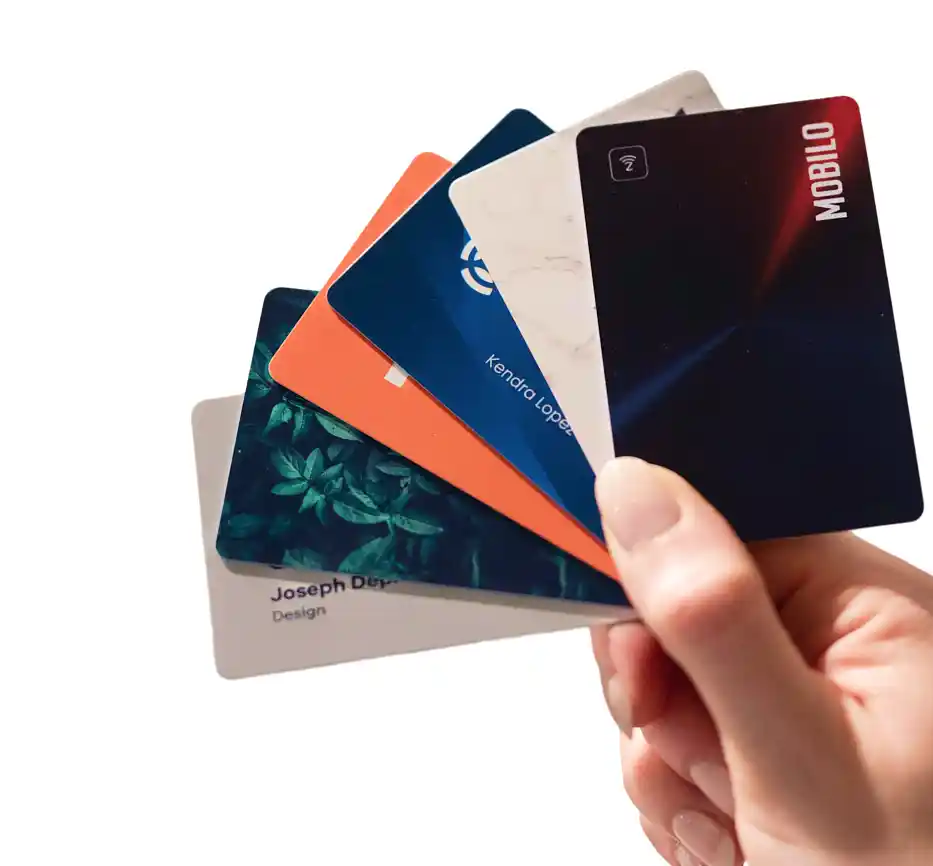
To make that effortless, Mobilo's digital business card helps you generate and share a LinkedIn QR code from your phone, attach it to meetings or badges, and track who scanned it so you can follow up with the right people.
Summary
- Traditional networking often fails to translate connections into outcomes: 85% of jobs are filled through networking, yet only 25% of people network effectively, resulting in sloppy handoffs that directly translate into missed opportunities.
- LinkedIn QR codes reduce friction and errors in sharing, with users reporting a 50% faster connection rate at events and 75% of users reporting that QR use increased their connection requests.
- Scannability depends on file and placement specifications. For example, export a vector SVG and a 300 DPI PNG; keep business card QRs at least 1.5 inches square, badges at 2 inches, and signage at roughly 1 inch per 10 feet.
- Measurement should track more than raw scans, focusing on scan-to-connection conversion, time to first outreach, and CRM attribution, because over 70% adoption of QR codes makes conversion hygiene essential to prove event ROI.
- Operational discipline prevents fragmentation as scale grows: centralize canonical QR assets, assign a single owner, and use event-specific redirects so follow-up does not fall into spreadsheets, a problem that intentional QR workflows have reduced for 75% of users who reported more inbound interest.
- Technical reliability matters; test printed or displayed assets across three phone brands and two OS versions, aim for sub-300-millisecond redirect latency, and verify that landing pages load under poor cellular conditions to avoid timeouts.
Mobilo's digital business card addresses this by storing your LinkedIn QR and converting a scan into a single-tap, CRM-ready contact and branded landing experience.
How Traditional Networking Misses Opportunities for Connections
Traditional networking usually fails because it was designed for a slower world. Paper cards, delayed follow-ups, and verbal promises that evaporate when the event ends. Those habits cost time, create data gaps, and leave teams blind about which conversations actually convert into opportunities.
Why Do Business Cards and Handshakes Fall Short?
Old habits work until they no longer do. A physical card can sit in a wallet for months, names get misspelled, and a promise to “connect on LinkedIn” too often becomes a forgotten chore. This is exhausting when you are juggling deals, hiring, and product deadlines; the friction shows up as missed interviews, cold leads that never warm, and branding that fragments across every exchange.
What Does That Lost Connection Actually Cost Us?
The cost is not sentimental; it is strategic. According to Apollo Technical, 85% of jobs are filled through networking, meaning the informal interactions you skip or botch today directly affect pipeline and hiring outcomes tomorrow. At the same time, only 25% of people network effectively, so most teams are leaving high-value work to chance while competitors systematize those same interactions into predictable results.
A Quick, Human Example
Two years ago, I was in line for coffee when I started talking with a hiring manager at a local tech firm. We had two minutes of actual chemistry, and she said, “Let’s connect on LinkedIn.” I fumbled my phone, hunted for my profile, and watched the moment dissolve as she ordered her latte. That brief awkwardness cost me a warm intro that might have turned into a candidate referral or partnership within weeks. That one scene captures the standard failure mode, human chemistry that produces nothing because the handoff is slow and clumsy.
Why Speed and Measurement Matter More Than Charm
Charm opens doors, but measurement turns meetings into strategy. When connections are captured instantly and routed into a CRM, you stop guessing which events generate hires, and you stop relying on memory for follow-up. The failure point is usually the handoff. When contact capture is manual, your data is incomplete, conversion rates become noise, and follow-up squads spend hours reconciling names instead of closing opportunities.
How Does This Change Day-to-Day Behavior?
When capture is frictionless and tracked, behaviors shift quickly. Reps follow up within hours because the contact and context are already in their workflow. Recruiting teams can trace a hire back to a booth conversation. Event managers measure return on spend because each scan becomes a lead with source metadata. That change is not subtle; it reduces response time, minimizes lost opportunities, and replaces anecdotal hiring with traceable outcomes.
What’s the Emotional Difference for People?
It feels different at ground level. Instead of apologizing for fumbling a phone, you walk away from a conversation confident you can act on it. Instead of drowning in post-event spreadsheet cleanup, you get targeted follow-up and measurable next steps. Less administrative overhead, more green lights on deals and hires, and a cleaner view of where real value comes from.
Related Reading
- Best Business Card Scanner
- What Makes a Good Business Card
- Business Card Trends
- QR Code Marketing Strategy
- What Are NFC Business Cards
- Professional Networking Tools
- New QR Code Technology
- Best Paid QR Code Generator
- What to Include on a Business Card
How LinkedIn QR Codes Simplify Networking
LinkedIn QR codes make sharing immediate, clean, and repeatable, so you stop losing momentum to fumbling and guesswork. They cut the handoff to a single scan, remove typing errors, and make it easy to turn casual introductions into traceable leads you can act on.
How Exactly Does a QR Code Remove Friction?
- The LinkedIn QR code replaces the somewhat inconvenient URL you always have to provide when sharing your profile.
- You don’t need to know the person’s name or search for them on the platform. Just scanning the code will take you immediately to their profile.
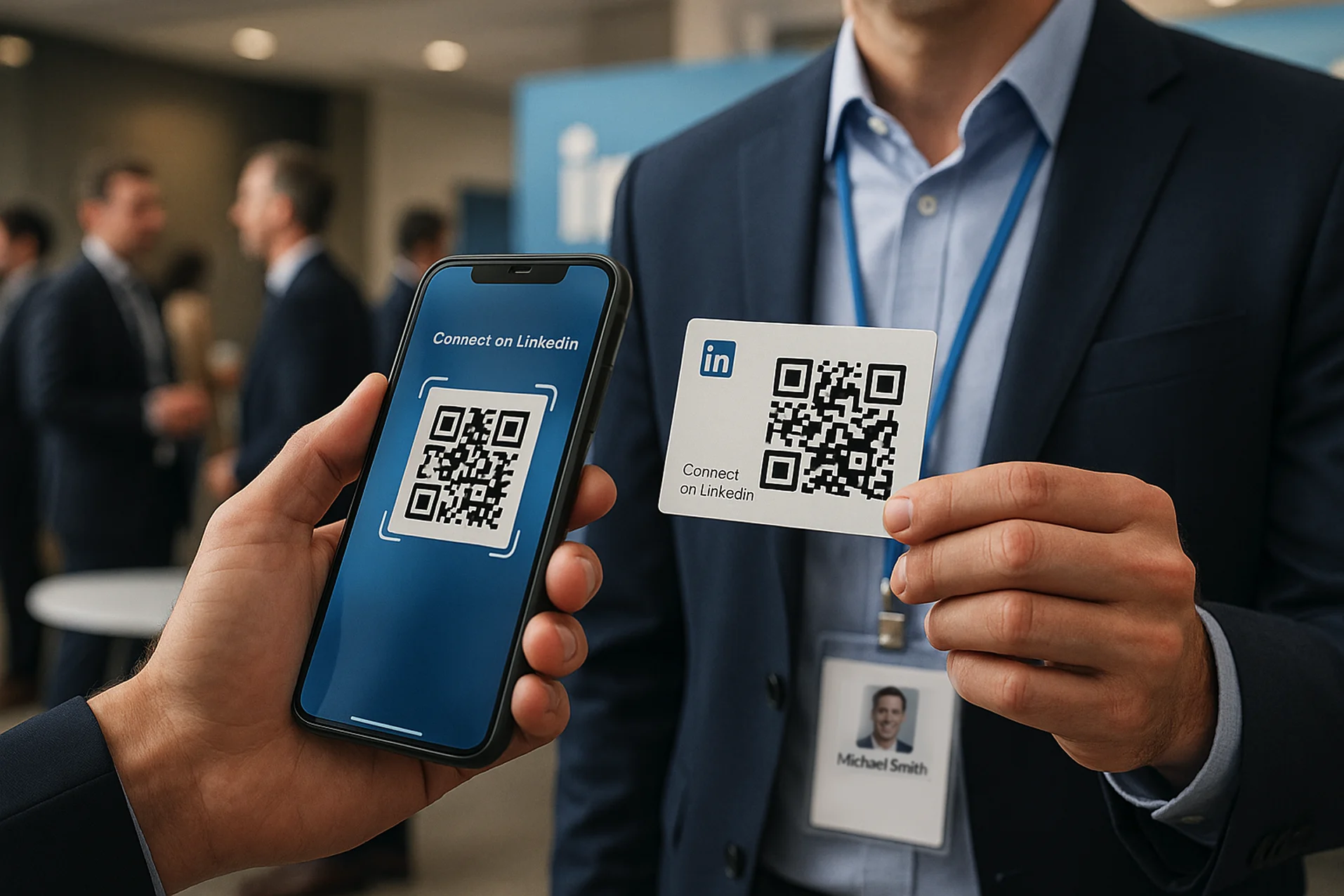
- You can improve your networking on the spot by presenting your LinkedIn QR code at a networking occasion, whether displayed on your mobile device screen, your business cards, or your name badge.
- The LinkedIn QR code can be placed in several online and offline mediums, such as websites, banners, billboards, printed and PDF resumes, and more!
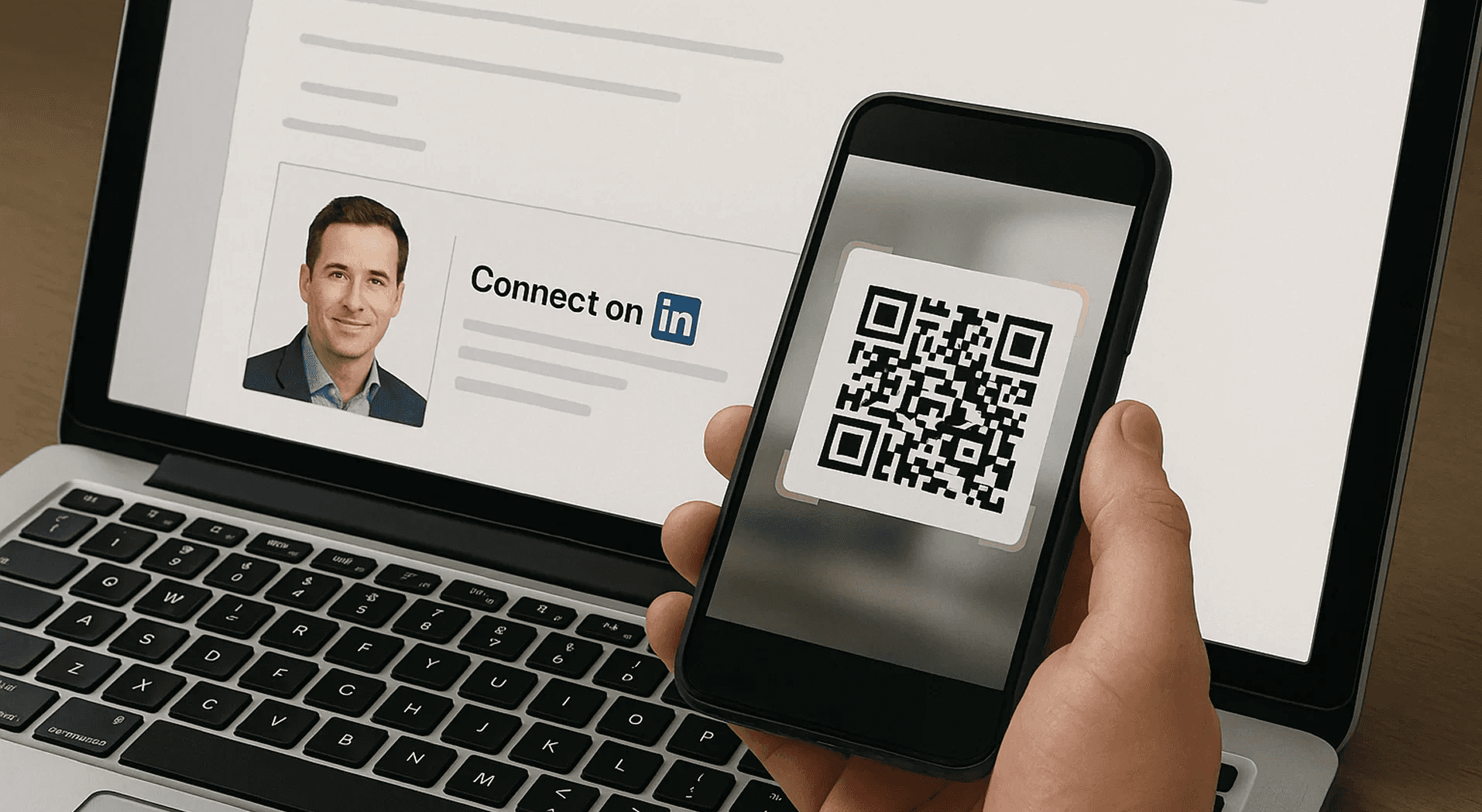
- The LinkedIn QR code makes it easy to connect with a professional offline and bring those connections online.
Those five practical points are what make the QR approach more reliable than asking someone to spell their name, type a URL, or promise to “connect later.” A clean scan preserves the context of the moment, so follow-up feels natural rather than forced.
What Happens to Follow-up When Scanning Is Instant?
When someone scans a code, the profile and context travel with the contact. That reduces transcription errors, eliminates the common “I’ll look you up later” failure, and raises the odds that a connection turns into action. According to Rebecca L. Cooney, connect with a potential mentor, colleague, or prospective employer in two seconds flat; that immediacy is not a marketing fluff point, it is what makes human chemistry translate into measurable next steps.
What About Trust and Safety, Especially With QR Vectors?
There is a common, justified concern that QR codes can be used to direct users to malicious URLs. That fear manifests as hesitation when attendees are given a code they did not expect, and it erodes the trust you worked to build in those first minutes. The receiver cannot easily verify the destination, which breaks the conversion. The practical fix is to use signed or branded QR placements, visible trust signals, and a consistent domain that recipients can recognize before they tap through, so the scan feels safe and predictable.
How Widespread Is QR Adoption on LinkedIn?
Adoption is now mainstream, according to the 2025 State of QR Codes Report. Over 70% of LinkedIn users have adopted QR codes for networking purposes. That level of acceptance changes the risk calculus. QR is no longer a novelty; it is a default channel you should govern and instrument.
How Do You Get Measurable Results From a QR-First Approach?
The shift from scattered handoffs to scanned captures changes behavior immediately. When scans are routed into a CRM with source metadata, reps stop guessing which event generated a lead and stop losing warm introductions to spreadsheet drift. That means faster, prioritized follow-up, consistent branding on every touch, and auditable lead records for compliance reviews. Those are the outcomes buyers care about lower admin load, preserved brand standards, and confidence that event spend produced a trackable pipeline.
How to Share a LinkedIn QR Code for Maximum Visibility
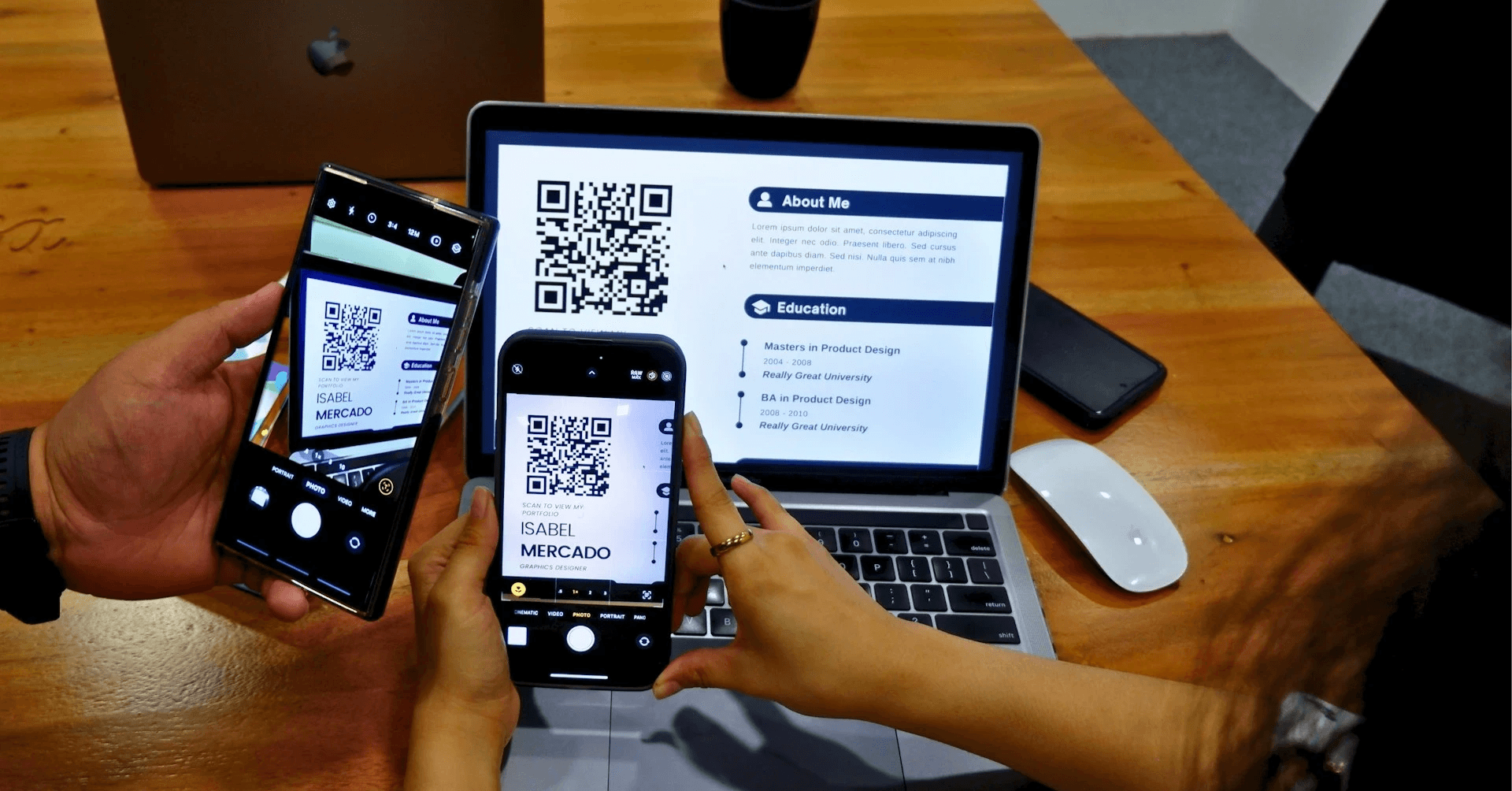
Yes. Use your LinkedIn QR code everywhere that creates a transparent, two-second handoff, like on paper, on-screen, and in messages, with file types and sizes optimized for each channel so scans are immediate and readable.
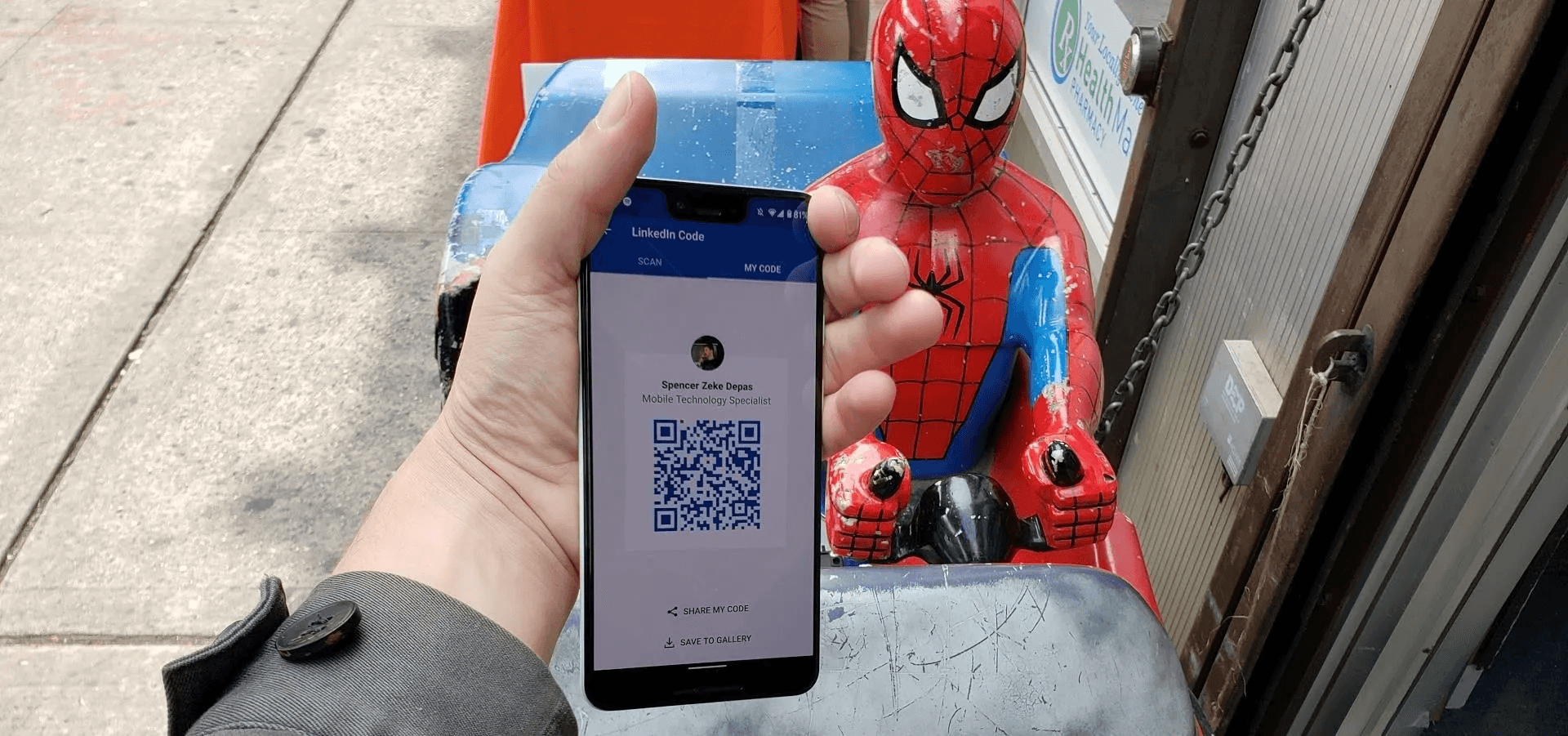
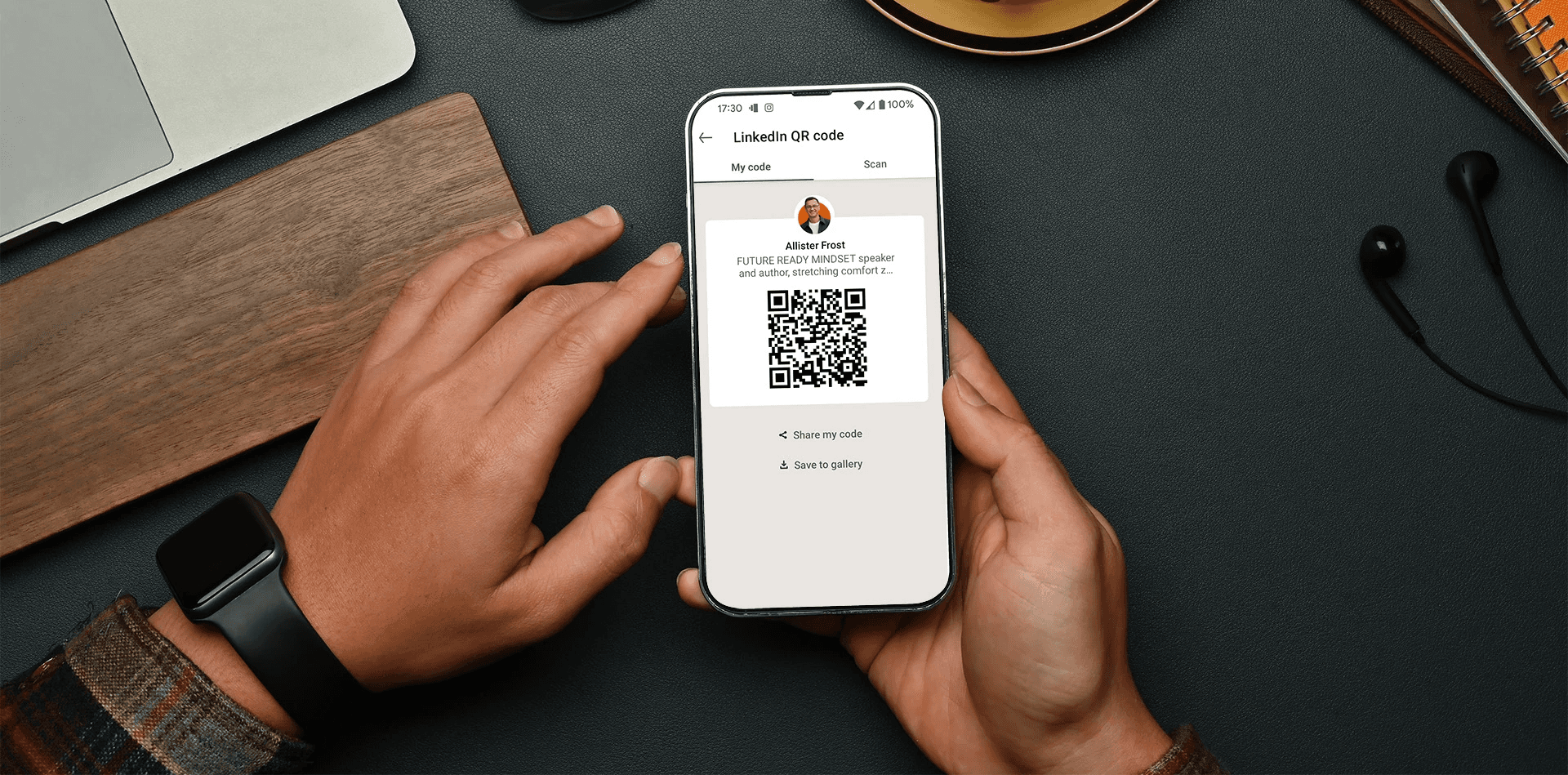
Android:
- Start by opening the LinkedIn app on your device.
- Select the QR code icon in the search bar at the top right of your LinkedIn homepage.
- Tap the 'My code' tab to view your QR code.
- Press 'Share my code' to share your LinkedIn QR code through message, email, or other apps.
- Or 'Save to gallery' to save it to your photo gallery.
iOS:
- Open the LinkedIn app on your phone.
- Tap the search bar at the top.
- Tap the QR code icon (located on the right side of the search bar).
- To share your LinkedIn QR code, tap ‘My Code’ and allow the other person to scan it. Next, tap 'Share my code' to send your QR code via message, email, or third-party apps. Or 'Save to photos' to store it in your gallery.
- Tap the 'Share code only' or 'Share with photo' dropdown option, or 'Save code only' or 'Save with photo', depending on what you selected in the previous step.
Is There a QR Code for LinkedIn Company Pages?
LinkedIn does not currently offer built-in company-page QR code generation, so use a trusted generator such as Bitly, QR Code Generator, or Beaconstac. Enter your company page URL, export a high-resolution PNG or SVG, and then treat that file exactly like a personal LinkedIn QR code when you add it to materials.
How Can I Connect With Someone on LinkedIn via QR Code?
Android:
- Open the LinkedIn app on your device.
- Tap the QR code icon in the ‘Search bar’ on the homepage.
- Select the 'Scan' tab and ‘Enable camera access’.
- Hold your device over the person’s LinkedIn QR code to connect. Or tap 'Scan from photos' to use a saved QR code from your gallery.
iOS:
- Open the LinkedIn app.
- Tap the search bar at the top.
- Tap the QR code icon (located on the right side of the search bar).
- To scan someone else's QR code, choose the ‘Scan’ tab.
- Lastly, select ‘Enable Camera Access.’
Which File Types, Sizes, and Colors Work Best for Print and Screen?
- What format should I export? Use vector SVG when possible for print and large displays, or PNG at 300 DPI for print and 72-150 DPI for screens. Keep a PNG backup for platforms that do not accept SVG.
- How large should the code be? For business cards, aim for at least 0.8 in (20 mm) square. For handouts and badges, use 1.2–2.0 inches (30–50 mm). For banners and signage, size is based on viewing distance. For every additional 10 feet of viewing distance, add roughly 1 inch to the QR edge length.
- What about contrast? Black on white is safest. Avoid patterned backgrounds, low-contrast colors, or overlays that encroach on the quiet zone.
- How to verify readability? Print a single test card, scan it with three different devices and two different scanning apps, then correct and re-export if any app fails.
Four Practical Ways to Share Your LinkedIn QR Code
Business cards:
- Export a high-res PNG or SVG, place it on the back with at least 20% clear margin around the code, and keep it at 0.8 inch or larger.
- Add a one-line context label, such as "Scan to connect on LinkedIn," so recipients know what happens when they scan.
- Save the print-ready file with bleed and embedded fonts to avoid layout shifts.
Presentations and slide decks:
- Place the QR code in the lower-right corner of the closing slides, with a call to action and a 10-second visual pause for scanning.
- Use an entirely white or black slide behind the QR code for the cleanest scan; avoid semi-transparent logos layered over the code.
- Export slides as PDF and test that the QR remains scannable after compression.
Email signatures and newsletters:
- Use a small, clickable image linked to your LinkedIn profile, plus a downloadable vCard containing your contact details.
- Provide both the QR as an image and a short link as a fallback; not everyone will scan inside an email client.
- Host the image on a fast CDN so email clients render it reliably.
Texting and messaging:
- Save the QR to your phone gallery using LinkedIn’s 'Save to gallery' or 'Save to photos' option, then send the image directly or paste a short profile URL for recipients who can’t scan.
- For SMS, include a one-line explanation and a direct link; mobile users often prefer a tap to a scan when they are already in messaging.
Design and Accessibility Checklist Before You Publish or Print
- Quiet zone verified, high contrast present, and no logos intruding on the code.
- File exported as SVG for print, PNG for universal compatibility.
- Test with at least three different phones and two scanning apps.
- Provide an explicit fallback, a short URL, or a vCard for non-scanning users or those with accessibility needs.
- Include a visible brand cue or microcopy to make the scan destination feel trustworthy.
Practical Tips for Conference-Ready Placement and Behavior
- Place your code where people naturally pause, such as at checkout, booth table edges, or presentation Q&A moments.
- When displaying the code on-screen, pause for 8–12 seconds and provide a brief verbal cue so attendees know to look.
- Teach your team to proactively offer the scan: "Would you like to scan my LinkedIn card?" The explicit offer reduces confusion and increases acceptance.
- Keep an offline, printed fallback for venues with poor connectivity.
Human Insight That Matters
After working across five event programs, the recurring pattern became clear. Scans either convert or they do not, due to trust and clarity. It is exhausting for reps when a productive conversation ends because the code was too small, the contrast was poor, or the attendee feared a malicious link. Fixing those small details immediately improves conversion and restores the human momentum you started with.
Quick Sanity Checks Before Any Distribution
- Is the QR linked to the correct profile or company page, and is that URL stable?
- Did you test the file after any size or color edits?
- Does every rep use the centrally approved file and microcopy?
- Do you have analytics or CRM routing in place so scans become actionable leads?
Related Reading
- How to Put Linkedin on Business Card
- How to Add Instagram QR Code to Business Card
- QR Code Instead of Business Card
- QR Code Size on Business Card
- How to Scan QR Code on Iphone
- Aztec Code vs QR Code
- How QR Codes Work
- QR Code Analytics
- Linkedin QR Code Business Card
- How to Create Vcard
Tips to Maximize LinkedIn Connections With Your QR Code
Treat your LinkedIn QR code as a measurable touchpoint, not a decorative asset. Instrument each code, run rapid experiments on the landing experience, and feed every scan directly into your CRM so follow-up happens while the conversation is still warm. With that setup, you convert a quick handshake into an attributable lead and optimize what actually moves the needle.
How Can You Run Fast Experiments With Scans?
Use dynamic redirects to run A/B tests on the landing page and CTA, then compare outcomes by cohort, time of day, and event. Add unique campaign parameters to each event redirect so you can see which message, image, or incentive produces real action, and treat each conference like a lab where small changes compound over weeks. 75% of LinkedIn users report an increase in connection requests after using QR codes. Teams see more inbound interest when QR sharing is intentional and tracked.
What Should You Capture at Scan Time to Enable Automatic Follow-Up?
Record the timestamp, device type, geolocation, and referring asset, then push those fields to your CRM to trigger an automated workflow that sends a personalized template within hours. Keep data minimal for privacy, and add a short consent note on the landing page to ensure regional compliance. At events, fast conversion matters by design. Users have experienced a 50% faster connection rate with LinkedIn QR codes. Your automation should prioritize immediate, relevant outreach over long, manual entry cycles.
How Do You Make On-the-Ground Sharing Less Awkward and More Reliable?
Train reps with a one-line script and a practiced handoff routine for three days before a show, and test physical presentation under real conditions. When we piloted a soft-backlit frame for the QR across a three-day trade show, reps reported fewer aborted attempts and faster handoffs because scanners could lock focus immediately. Pair that with a two-option fallback, such as a short URL sent via SMS, and you eliminate the “I’ll scan it later” problem.
What Operations Keep Multiple Teams in Sync as Volume Grows?
Use a single canonical asset repository with version control, and issue short-lived campaign redirects for each event so you can rotate or revoke links without modifying the printed code. Treat QR redirects like keys. Rotate them when personnel or messaging changes, audit who can create them, and run weekly reports showing scans, conversions, and follow-up latency. That process preserves brand control and prevents stale links from seeding confusion.
What Technical Checks Separate a Smooth Experience From a Failed One?
Test average redirect latency under load and aim for sub-300-millisecond server redirects to prevent camera timeouts. Verify redirects under poor cellular conditions. Test with phone cases, sunglasses, and older camera sensors. Also, confirm the landing page is accessible, loads without heavy scripts, and exposes a clear fallback link and alt text for users who cannot scan.
How Do You Balance Measurement and Privacy?
Capture only what you need to attribute a lead, store it with role-based access, and show a concise consent line on the landing page so visitors understand why their scan improved follow-up. That combination preserves trust while keeping the pipeline clean enough to act on within hours.
Book a Demo Today and Get your First 25 Cards Free (Worth $950)
The truth is, a LinkedIn QR scan should do more than open a profile; it should convert that quick scan into a scored, actionable lead that lands in your CRM within hours. Book a demo with Mobilo, and we'll show how our smart digital business cards let you share LinkedIn QR codes that automatically exchange contact information, enrich and score leads against your ICP, and sync directly to your CRM. Join over 59,000 companies, start generating 10x more leads at every event, and claim your first 25 cards free, worth $950, so you get immediate value from faster, safer scan-to-connect workflows.
Related Reading
- Static vs Dynamic QR Code
- How to Put a QR Code on a Business Card
- RFID vs QR Code
- How to Track QR Codes
- Is QR Code Generator Safe
- How Much Does a QR Code Cost
- QR Code Accessibility
- QR Code Lead Generation
- Business Card Ideas With QR Code
- Dynamic QR Code Example