.avif)

How to Add a Link to a LinkedIn Post Without Hurting Reach
On This Page
You've crafted the perfect LinkedIn post, but now you face a familiar dilemma: adding a URL might tank your engagement. LinkedIn's algorithm often buries posts with external links, pushing them lower in your connections' feeds. Understanding how to add a link to a LinkedIn post without sacrificing visibility is essential for anyone trying to drive traffic to their website, portfolio, or landing page while maintaining the reach their content deserves.
This is where a digital contact card becomes your strategic advantage. Mobilo offers a solution that lets you share multiple links, resources, and contact information through a single, algorithm-friendly profile that lives within your LinkedIn bio and posts. Instead of fighting against platform preferences, you can guide your audience to a centralized hub where they can access everything you want to share, keeping your LinkedIn engagement strong while still achieving your traffic goals.
Summary
- LinkedIn's algorithm doesn't punish all external links, but it does deprioritize posts that lack substantive content around them. Posts with external links can see 85% less traffic when they offer minimal context or value, according to June 2025 analysis. The real issue isn't the URL itself but the lazy framing that gives readers no reason to engage before clicking away.
- External links can reduce reach by 68% unless you include three or more links in a single post, according to research from September 2025. This counterintuitive finding suggests LinkedIn's system treats single-link posts as potential spam or low-effort promotion, while multiple links signal a resource roundup that provides genuine value. Context and intent matter more than the technical presence of a URL.
- Over half of LinkedIn users access the platform on mobile devices, where long URLs break awkwardly across lines and previews display differently than on desktop. A post that looks clean on your laptop might appear cluttered or unreadable on a phone screen. Testing your post on mobile before publishing prevents formatting issues that kill engagement.
- Broken link previews kill engagement before anyone reads your post. When LinkedIn pulls a blank image, generic placeholder text, or an error message instead of a clean preview card, most readers scroll past and assume the link is broken or untrustworthy. The problem usually stems from missing or misconfigured Open Graph metadata on the destination page.
- Vague calls to action such as "check this out" or "click here" lead readers to guess what they'll find, increasing friction and reducing clicks. Specific descriptions that explain what the link offers and why it matters build trust and motivation. Clarity makes clicking feel like a smart decision rather than a gamble.
Multiple links in a single post confuse readers about where you want them to go, and when you offer three or four options, most people choose none. Mobilo's digital contact card addresses this by consolidating contact information, portfolio links, and key resources into a single profile that you can share in your bio and posts without cluttering your content.
Can You Put Links in LinkedIn Posts?
You can absolutely add links to LinkedIn posts. The platform doesn't block them or automatically hide your content. What it does do is prioritize posts that keep people engaged on LinkedIn itself, which means the way you include a link matters far more than whether you include one at all. The myth that LinkedIn punishes all links has created unnecessary anxiety. Many professionals experience low engagement when they include links with minimal context or value, then blame the URL itself. The real culprit is usually the post surrounding it.
Provide Substantive Context
When you drop a link with nothing but "Check this out!" or "Thoughts?", you're asking the algorithm to promote content that offers zero value to anyone scrolling their feed. LinkedIn's system rewards posts that spark conversation, provide insight, or teach something useful. A bare link with lazy framing does none of those things.
Provide Substantive Context
According to Samantha McKenna's June 2025 LinkedIn analysis, posts with external links receive 85% less traffic when they lack substantive content. That's not because the link exists. It's because the post itself fails to give readers a reason to care before asking them to click away. The algorithm interprets low engagement as a signal that your content isn't worth showing to more people.
Two Types of Links You Can Use
LinkedIn supports two distinct approaches to adding URLs, each with different formatting behavior and visual impact.
Text Links Require Full URLs
Text links require you to paste the full URL directly into your post. You can't hyperlink specific words or phrases the way you might in an email or blog post. If you want someone to visit "example.com/resource", you need to include the full URL. This creates a clickable link, but it can look clunky and interrupt the reading flow, especially with long or complex URLs.
Use URL Preview Cards
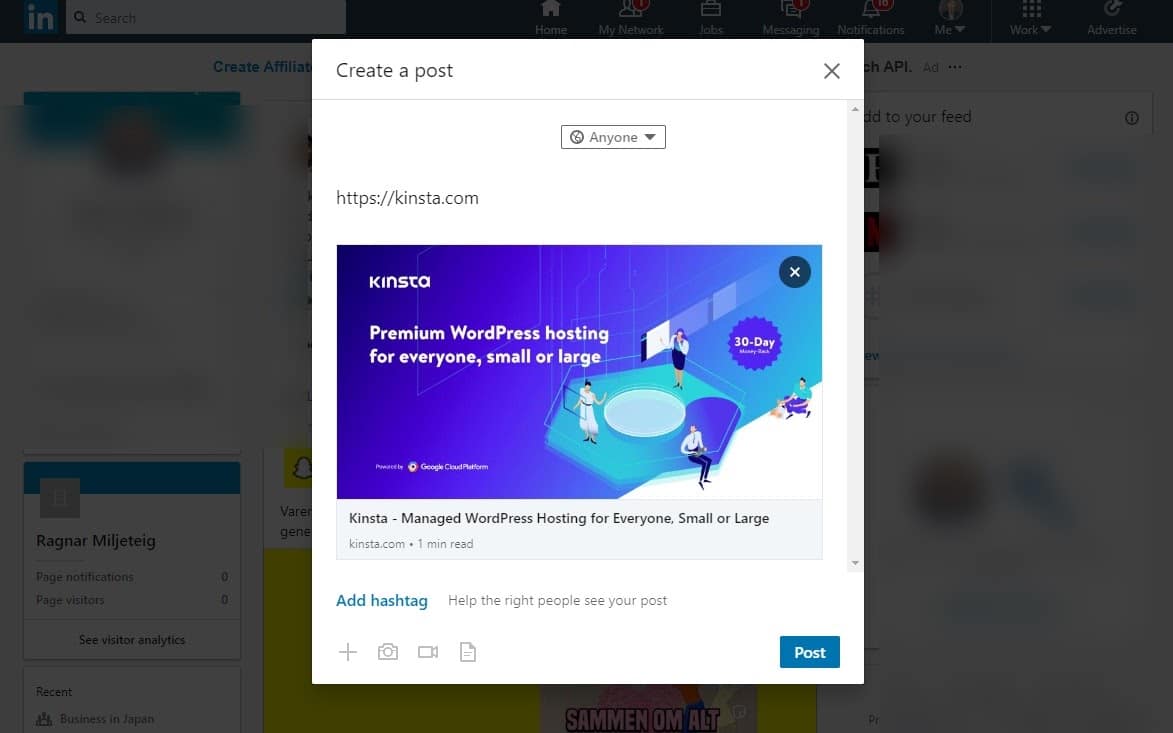
URL preview links generate automatically when you paste a URL into your post. LinkedIn pulls the page title, description, and featured image to create a visual card that appears below your text. This preview makes your link more inviting and provides readers with context on where they're headed before they click. The visual element also helps your post stand out in a crowded feed, which can increase engagement even before someone clicks your link.
The Algorithm Cares About What Surrounds the Link
Most people focus on the mechanics of adding a link when they should focus on the content that frames it. LinkedIn's system evaluates how people interact with your entire post. If readers stop scrolling, leave comments, share your post, or click your profile, those signals indicate to the algorithm that your content deserves wider distribution. A link sitting at the end of valuable, engaging content gets more reach than a link dropped into an empty promotional shell.
Provide Value Before Linking
Write a full post first. Share a specific insight, tell a brief story, or explain a concept that helps your audience solve a problem or see something differently. Then add your link at the end as a natural extension of that value. The link serves as a resource that deepens what you've already provided, not a replacement for original content. This approach works because it respects both the algorithm's preference for engagement and your audience's need for substance before action.
Context and Intent Matter
Research from Shaleen Sehgal in September 2025 found that external links can reduce reach by 68% unless you include three or more links in a single post. That counterintuitive finding suggests LinkedIn's system treats single-link posts as potential spam or low-effort promotion, while multiple links signal a resource roundup or curated list that provides genuine value. The pattern reinforces the same principle that context and intent matter more than a URL's technical presence.
Keep Your Links Relevant and Clean
Every URL you share should connect directly to the topic of your post. Dropping a link to your newsletter in a post about project management only works if the newsletter actually covers project management strategies. Tangential or forced links feel opportunistic, and readers notice. They'll scroll past without engaging, which tanks your reach regardless of how well you formatted the URL.
Use Short, Readable URLs
Use short, readable URLs whenever possible. Long strings of tracking parameters or random characters look suspicious and reduce click-through rates. If you're sharing content from your own site, create clean permalinks. If you're linking to external resources, consider using a URL shortener that maintains credibility (your domain or a trusted service, not a generic link shortener that could hide the destination). Clean URLs build trust and make your post look more professional.
Avoid Excessive Links
Avoid excessive linking within a single post unless you're explicitly creating a resource list. Two or three links can work if each serves a distinct purpose and you've explained why each matters. Six or seven links scattered throughout your text make the post feel like a link farm rather than a conversation. Focus beats sprawl.
Think Strategically About Links
Most professionals manage their LinkedIn presence the same way they've always shared links: paste a URL, write a quick caption, and hope for clicks. That approach worked when LinkedIn functioned more like a broadcast platform. Now the system prioritizes conversations and native engagement, which means every external link competes with the platform's preference to keep users scrolling within LinkedIn. The friction isn't technical. It's strategic.
Consolidate Resources with Mobilo
Solutions like Mobilo address this by consolidating multiple resources, contact methods, and content links into a single digital profile within your bio and posts. Instead of choosing which one link to include in each post, you can guide your audience to a hub where they can access everything you want to share. This approach respects LinkedIn's preference for minimal external links in post text while still giving you the flexibility to distribute multiple resources without cluttering your content or diluting your message.
Related Reading
- Best Link in Bio Tool
- What is Link in Bio
- How to Improve Linkedin Profile
- How To Build Personal Branding
- How to Add Portfolio to Linkedin
- How To Add Link To Tiktok Bio
- How to Add Instagram Link to Tiktok
- Where is Link in Bio on Instagram
- How to Add Link to Linkedin Post
- How to Add Website Link to Linkedin Profile
- Link in Bio Examples
- How To Add Link To Tiktok Bio
- How to Add Instagram Link to Tiktok
Step-by-Step Ways to Add a Link to a LinkedIn Post

The simplest method is to paste the full URL directly into your post text. LinkedIn automatically converts it into a clickable link and generates a preview card with an image, headline, and description pulled from the destination page. This takes seconds and requires no special formatting or tools.
Paste the URL Directly Into Your Post
Copy the full URL from your browser's address bar. Then open LinkedIn, start composing your post, and paste the link anywhere in your text. LinkedIn recognizes the URL immediately and creates both a clickable link and a visual preview below your content. Write your post first, then add the link at the end. This forces you to create value before asking for a click. If you start with the URL, you'll often write lazy framing around it. When you write the content first, the link becomes a natural extension of something useful you've already shared.
Keep or Remove the Preview
The preview card appears automatically, showing the page's featured image, title, and meta description. You can remove this preview by clicking the small X in the corner if you want a cleaner look, but most people keep it because the visual element increases engagement. According to HyperClapper's January 2025 analysis, LinkedIn's algorithm has become more sophisticated and less punitive toward links embedded directly in posts, especially when surrounded by substantive content.
Shorten Long URLs for Readability
Long URLs with tracking parameters or complex paths are hard to read and make your post harder to read. A URL like "example.com/blog/2025/01/how-to-optimize-your-linkedin-profile-for-maximum-visibility-and-engagement?utm_source=newsletter&utm_medium=email" eats up character space and disrupts reading flow.
Use a URL Shortener
Use a URL shortener such as Bitly, TinyURL, or RocketLink to shorten the link. These tools create a short redirect that looks professional and saves space. Paste your original URL into the shortener, copy the shortened link, and paste it into your LinkedIn post instead.
Balance Short Links With Trust
Short URLs work well when you're including multiple links or when character count matters. They also let you track clicks if you use a service that provides analytics. The tradeoff is transparency. Some readers hesitate to click shortened links because they can't see the destination. If trust matters more than aesthetics, keep the full URL visible.
Add Context Around Your Link
LinkedIn doesn't support anchor text in regular posts. You can't highlight specific words and hyperlink them the way you would in an email or article. If you want to link to a resource, you must paste the full URL or include descriptive text.
Explain the Link First
Write a sentence that explains what the link offers before you paste the URL. Instead of dropping a bare link with no context, write something like "Here's the framework we use to prioritize product features: [URL]." This approach gives readers a reason to click and signals to the algorithm that your post offers value beyond the link.
Provide Clear Context
Many professionals skip this step and paste links with vague framing, such as "Check this out" or "Thoughts?" That forces readers to guess what they'll find, which kills click-through rates. Specific context builds trust and increases engagement because people know exactly what they're getting before they leave LinkedIn.
Remove or Adjust the Auto-Generated Preview
When you paste a URL, LinkedIn pulls metadata from the destination page to create a preview card. Sometimes the image, title, or description doesn't match what you want to emphasize. You can remove the preview entirely by clicking the X in the top-right corner of the card.
Remove Previews for Cleaner Posts
Removing the preview makes sense when the auto-generated image looks unprofessional, when the headline is too long or generic, or when you want a cleaner visual presentation. The link remains clickable in your text even without the card. Some posts perform better without previews because they look less promotional and more conversational.
Update Metadata if You Control the Site
You can't edit the preview content directly. LinkedIn retrieves any available metadata from the destination page. If you control the website, you can update the page's Open Graph tags to change how the preview appears, but that requires backend access and technical knowledge most people don't have.
Tag Companies Using the @ Symbol
If you want to mention a company in your post and link to their LinkedIn page, type the @ symbol followed by the company name with no space. LinkedIn's autocomplete will suggest matching pages as you type. Select the correct company from the dropdown.
Tag Companies Directly
The company name appears in bold and becomes a clickable link to their LinkedIn page. This differs from pasting a URL because it tags the company directly, notifying them that you mentioned them. They might engage with your post, share it, or reply, which increases your reach.
Ensure Proper Visibility
Make sure your post visibility is set to "Anyone" if you want the tagged company to see it. If your post is restricted to connections only, the company won't receive a notification, and the tag won't expand your reach. Double-check the company name before posting because tagging the wrong organization looks careless and wastes the opportunity for engagement.
Link to a Company Website Instead of Their LinkedIn Page
If you want to link to a company's website rather than its LinkedIn profile, paste the full URL into your post. LinkedIn generates a preview card that includes the company's logo, homepage description, and featured image when the site's metadata is configured properly.
Use Previews for Credibility
This method works when you're recommending a product, sharing a resource, or directing people to specific content on the company's site rather than on its LinkedIn presence. The preview provides visual confirmation that the link is legitimate and shows what to expect before they click.
Verify Metadata Before Posting
Check the preview before you post. If an image or description appears broken or irrelevant, the company's website may have incomplete metadata. You can still post the link, but you might want to remove the preview and rely on your own description to explain what readers will find.
Edit or Remove Links After Posting
If you need to change a link after your post is live, click the three dots in the top-right corner of your post and select "Edit post." You can modify the URL, remove it entirely, or add new links. Changes save immediately when you click "Save."
Edit Links Carefully
Editing can fix typos in URLs, update broken links, or remove links that no longer serve your purpose. The downside is that LinkedIn doesn't notify people who have already engaged with your post about the change. Anyone who clicked the original link before your edit won't see the updated version unless they return to your post.
Avoid Frequent Changes
Use this sparingly. Frequent edits can confuse readers who commented on your original content and now see something different. If the change is substantial, consider adding a comment on your own post explaining what you updated and why.
Link Strategically, Not Mechanically
Most professionals treat LinkedIn link-sharing as a technical task. Paste URL, hit post, move on. That approach misses the strategic layer. Every link you share either builds your credibility or erodes it, depending on whether the content surrounding it demonstrates expertise, provides context, or simply asks for attention without earning it. The mechanics are simple. The judgment behind them is what separates posts that get ignored from posts that get shared.
Consolidate Links with a Digital Profile
Solutions like Mobilo shift this dynamic by consolidating your contact information, portfolio links, and key resources into a single digital profile. Instead of deciding which one URL to include in each post, you direct people to a hub where they can access everything relevant to your professional identity. This reduces the friction of managing multiple links across posts while keeping your LinkedIn content focused on insight rather than navigation.
Related Reading
- How to Add Linktree to Tiktok
- How To Add Linktree To Instagram
- How To Add A Link To Instagram Story
- How To Add Link To Instagram Profile
- Personal Landing Page Examples
- Graphic Design Portfolio Websites
- Personal Portfolio Website Design Examples
- Small Business Bio Examples
- One Page Website Examples
- Best Photography Portfolio Websites
- Instagram Landing Page Examples
Common Link Mistakes That Hurt Reach and Engagement

Broken link previews kill engagement before anyone reads your post. When you paste a URL, and LinkedIn pulls a blank image, generic placeholder text, or an error message instead of a clean preview card, most readers scroll past. They assume the link is broken, untrustworthy, or low-effort. The problem usually stems from missing or misconfigured Open Graph metadata on the destination page, not LinkedIn's system.
Check Link Previews
Test your link before you post. Paste it into the composer, wait for the preview to load, and verify that the image, headline, and description accurately reflect the content. If the preview looks wrong or empty, the page you're linking to needs better metadata. You can't fix that from LinkedIn's side. Either choose a different URL or remove the preview card entirely and rely on your own description to explain what readers will find.
Preview Signals Credibility
According to Sophie Milliken's LinkedIn analysis, which generated 26 comments from professionals troubleshooting their own engagement drops, broken or misleading previews rank among the top reasons posts underperform. Readers make split-second decisions about whether to engage. A professional preview signals credibility. A broken one signals carelessness.
Burying Your Link in Dense Text
Readers scan LinkedIn posts. They don't read every word. If you bury your link halfway through a long paragraph or hide it between unrelated sentences, most people will miss it entirely. The link might be perfectly formatted and highly relevant, but placement determines whether anyone sees it.
Place Links Strategically
Put your link where readers naturally look. The end of your post works best because it builds on your value-driven content and provides a clear next step for readers after they've absorbed your insight. If you're sharing multiple resources, group them together in a short list near the bottom. Avoid scattering links throughout your text unless each one directly supports the sentence it appears in.
Use White Space for Visibility
White space helps. Break your post into short paragraphs with clear visual separation. When your link appears on its own line or in its own paragraph, it stands out. When it's crammed into a block of text, it disappears. Simple formatting changes can double your click-through rate without changing a single word of your content.
Writing Vague or Weak Calls to Action
Telling people to "check this out" or "click here" wastes the opportunity to explain why they should care. Vague calls to action prompt readers to guess what they'll find, increasing friction and reducing clicks. Specificity builds trust and motivation.
Explain the Link’s Value
Describe what the link offers and why it matters. Instead of "Here's a helpful resource," write "This framework walks through the exact questions we use to qualify leads in under two minutes." The second version tells readers what they'll get and how it solves a specific problem. That clarity makes clicking feel like a smart decision rather than a gamble.
Match the Call to Action
Your call to action should match the content that precedes it. If your post explains a problem, your link should offer a solution, a tool, or a deeper explanation. If your post shares a story, your link might provide the data or case study behind it. The transition from content to link should feel natural, not forced or transactional.
Using Too Many Links in One Post
Multiple links confuse readers about where you want them to go. Each URL competes for attention, and when you offer three or four options, most people choose none. They scroll past because the cognitive load of deciding which link to click feels like work.
Stick to One Primary Link
Limit yourself to one primary link per post unless you're explicitly creating a curated resource list. If you're sharing your perspective on a topic, include one link that supports it. If you're recommending tools, write a post specifically framed as a roundup and group your links with clear labels that explain each tool's purpose.
Consolidate Links Into One Profile
Most professionals manage multiple resources (portfolios, newsletters, contact information, and content libraries) and want to share them all. Dropping multiple links into every post dilutes your message and trains your audience to ignore them. Tools like Mobilo solve this by consolidating everything into a single digital profile. Instead of choosing which resource to promote in each post, you share one link that gives people access to your full professional presence. This keeps your LinkedIn content focused while still making all your resources available.
Ignoring Mobile Formatting
Over half of LinkedIn users access the platform on mobile devices, where long URLs break awkwardly across lines and previews display differently than on desktop. A post that looks clean on your laptop might appear cluttered or unreadable on a phone screen.
Preview on Mobile
Check your post on mobile before you publish. Open LinkedIn on your phone, paste your content into the composer, and scroll through the preview as if you were seeing it in your feed. Look for line breaks that split your URL into unreadable chunks, images that crop awkwardly, or text that runs too long without visual breaks.
Use Short, Clean URLs
Shorter URLs perform better on mobile because they don't wrap or break mid-word. If you're sharing a long URL with tracking parameters, use a shortener or create a clean permalink. The goal is readability across devices, not just the screen you happen to be using when you write the post.
Failing to Update Broken Links
Links break. Pages get moved, deleted, or reorganized. If you shared a resource six months ago and the URL no longer works, anyone who clicks it now receives a 404 error. That damages your credibility even if the original link was valid when you posted it.
Audit and Fix Old Links
Audit your high-performing posts periodically. Go back through the content that generated strong engagement and click the links to verify they still work. If a URL is broken, update your post to include a new link, or remove it and include a note explaining the change. This takes minutes and prevents ongoing damage to your reputation.
Link to What You Control
Some professionals avoid this by linking to their own content hub rather than external pages they don't control. When you direct people to a profile or resource page you manage, you can update the destination without editing old LinkedIn posts. The link stays valid indefinitely because you control what sits behind it.
Related Reading
- Bio Site vs Linktree
- Linktree Alternatives
- Shorby Vs Linktree
- Linkinbio vs Linktree
- Linktree vs Carrd
- Beacons vs Linktree
- Beacons vs Stan Store
- Milkshake vs Linktree
- Taplink vs Linktree
Turn LinkedIn Clicks Into Real Leads With Mobilo
Sharing links on LinkedIn drives clicks. Converting those clicks into actual leads requires a different system. The gap between engagement and follow-through is where most opportunities slip through the cracks. Someone reads your post, visits your site, maybe even fills out a form, but then the connection fades because contact details get lost, follow-ups never happen, or the information never makes it into your CRM.
Smart Lead Capture
Mobilo closes that gap by replacing the manual handoff with smart digital contact cards that automatically capture and sync lead data. When someone taps your card, their information flows directly into your CRM with enrichment, lead scoring against your ideal customer profile, and instant notifications. No paper cards to throw away. No spreadsheets you forget to update. No missed conversations because you couldn't remember who you met or what you discussed. Over 59,000 companies already use Mobilo to turn every interaction into a trackable, actionable lead.
Every Connection Counts
Book a demo today and get your first 25 digital contact cards free (worth $950). The system works whether you're networking at events, sharing your profile in LinkedIn posts, or meeting prospects in person. Every connection becomes a lead you can actually follow up on.