Mobilo AI Card Creator for Claude and ChatGPT
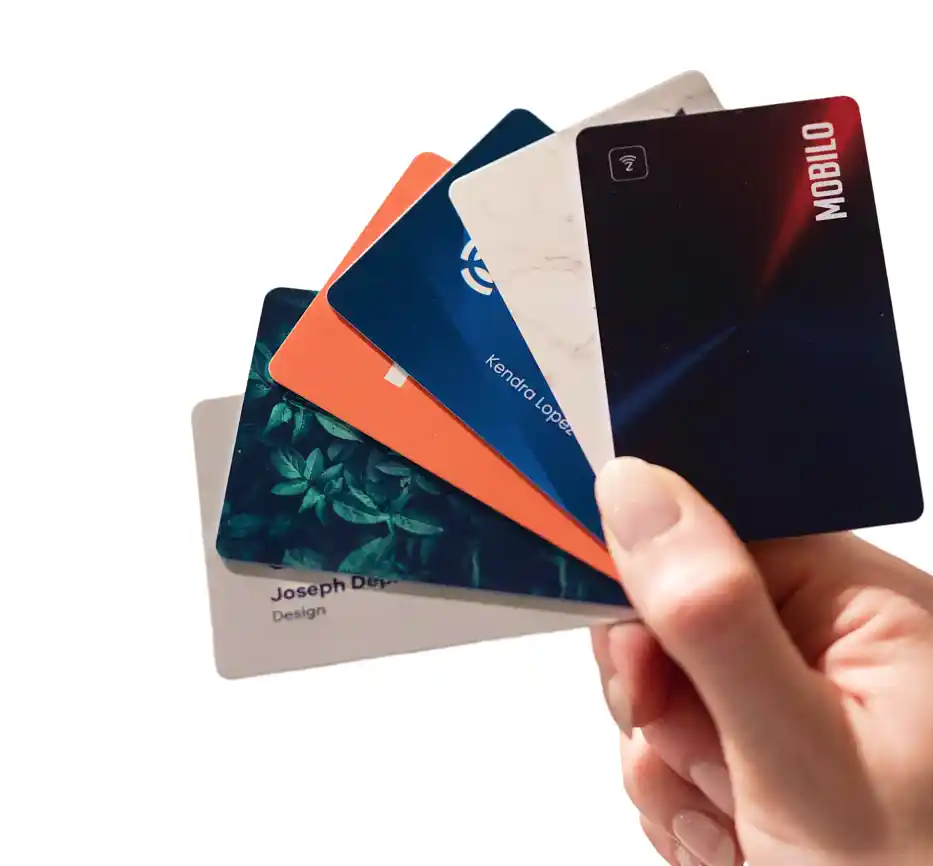
Give your AI assistant your work email and get a digital business card in under a minute. Mobilo looks up your name, title, company colours and logo, shows three designs, lets you change them in plain language, and sends the card you pick to your phone as a free Mobilo profile.
What you need
- A Claude or ChatGPT account (paid plans include custom connectors; check your plan).
- Your work email address. Personal providers such as gmail, outlook, yahoo or icloud are not accepted.
- Your mobile number, so the card can be texted to you.
Connector details to copy, used in both setups below:
- Name: Mobilo - AI Digital Business Card Creator
- Server URL: https://mcp.mobilo.dev/mcp
- Authentication: No Auth (leave any OAuth, client ID, client secret or API key field empty)
Set up in Claude (web or desktop)
- Open claude.ai/settings/connectors (Settings, then Connectors).
- Click Add custom connector.
- Name: enter Mobilo - AI Digital Business Card Creator.
- Remote MCP server URL: enter https://mcp.mobilo.dev/mcp.
- Leave the Advanced settings (OAuth client ID and client secret) empty. No sign-in is needed.
- Click Add. Mobilo appears in your connectors list with a Connected status.
- Start a new chat. In the chat box click the + (or the tools menu), check that Mobilo is enabled, then type: Make me a digital business card
On the Claude mobile app: Settings, Connectors, the same three fields, then start a new chat. Once Mobilo is listed in the Claude connectors directory you can add it from Browse connectors instead of typing the URL.
Set up in ChatGPT (web or desktop)
- Open ChatGPT, click your profile picture, then Settings.
- Open Apps & Connectors (on some accounts: Connectors).
- Scroll to Advanced settings and turn on Developer mode. This step is only needed until Mobilo is listed in the ChatGPT directory; after that, search for Mobilo Business Card and click Add.
- Go back to Apps & Connectors and click Create.
- Name: enter Mobilo - AI Digital Business Card Creator.
- Description: enter Creates a digital business card from a work email.
- MCP Server URL: enter https://mcp.mobilo.dev/mcp.
- Authentication: select No authentication.
- Tick I trust this application, then click Create.
- Start a new chat, type @Mobilo, pick the connector from the list, then type: Make me a digital business card
On the ChatGPT mobile app: once the connector is created on the web it is available in the app too. Start a new chat, type @Mobilo and pick it.
Example prompts
- Make me a digital business card
- Create a digital business card for jane@acme.com
- Use the second design, change my title to Head of Partnerships and make the background navy
What happens next, step by step
- The assistant asks for your work email (only that; no name or title needed). Reply with it.
- Three card designs appear in the Mobilo card panel, filled in with your name, title, company, colours and logo. Pick one by number, or tap it in the panel.
- Ask for changes in plain language: a different colour, a new title, a logo on or off. Or tap Edit in the panel and change the fields directly.
- Say publish it and give your mobile number, or tap Send it to my phone in the panel. The assistant (or the panel's confirm sheet) lists exactly what will be public on the card and asks for a yes.
- Confirm. Mobilo creates your Mobilo profile, emails you an activation link and texts the card to your phone. Nothing is published before this step.
- Open the text or the email on your phone to add the card. Edit it any time in the Mobilo app for iOS or Android, or at app.mobilocard.com.
What is public and what is not
- Public on the card: your name, title, company, work email and the card's QR code.
- Never shown on the card: your mobile number. It is used once, to text you the card.
- Drafts are private and expire after 24 hours. A published card and profile stay until you delete them in the Mobilo app or ask support.
- Up to 5 people per company domain can create a card this way. For a whole team, contact Mobilo.
What it does not do
- It does not accept personal email providers.
- It does not generate QR codes for anything other than your card.
- It does not delete accounts or change an existing Mobilo profile; use the Mobilo app or support for that.
- It never publishes without your explicit confirmation.
If something does not work
- The assistant says it cannot find Mobilo: open a new chat; connectors added mid-conversation are not always picked up.
- The card panel shows an old design or an email form: remove the connector, add it again with the same three details, and start a new chat.
- You already have a Mobilo account: publishing tells you so and sends nothing; sign in to the Mobilo app to manage your card.
- Anything else: mobilocard.com/support or hello@mobilocard.com.
Privacy
Your email, name, title and mobile number are used to build the card and create your profile, as described in the privacy policy.